

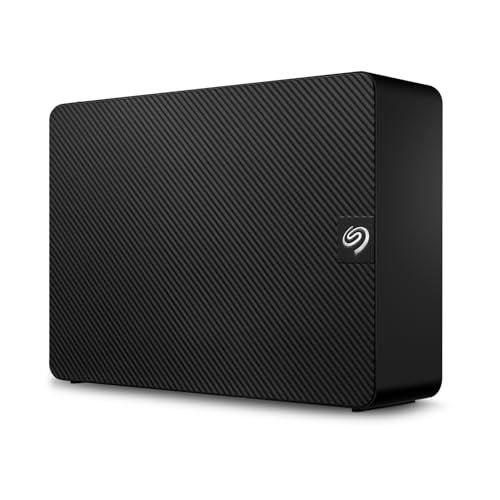
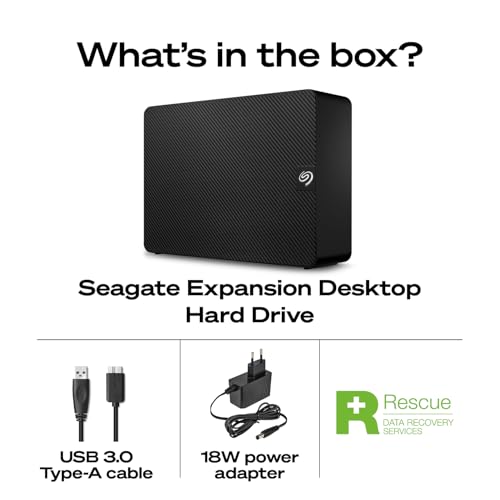


- Type: External HDD
- Storage Capacity: 8, 12, 16, 20, & 22TB
- Transfer Rate: 5 GB/s
- Hardware Interface: USB 3.0
- Compatibility: Windows, Mac




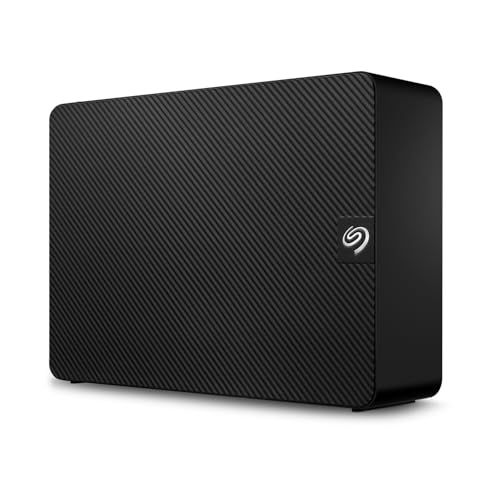
Seagate Expansion External Hard Drive
Overview and everyday experience

The Seagate Expansion External Hard Drive is designed to be the kind of storage you don’t have to think about very much: plug it in, move files, and get back to work. It’s a straightforward external drive aimed at people who need more space for photos, videos, games, backups, or large work projects without paying a premium for advanced features. In day-to-day use, what stands out most is how quickly it becomes part of a routine. You connect it via USB, it appears as a drive, and you can start transferring files with minimal setup. For many users, especially those who don’t want to tinker with software, that simplicity is the appeal.
Performance is generally what you’d expect from a traditional external hard drive rather than an SSD. File transfers for big folders of media are typically smooth, but not instantaneous, and the drive is better suited to bulk storage and backups than to workloads that demand constant high-speed access. If you’re moving huge video files or building a long-term archive, it feels appropriately capable. If you’re planning to edit 4K footage directly from the drive or run applications from it, it may feel slower than you’d like, simply because hard drives have higher latency and lower sustained speeds than solid-state storage.
Build and portability also play into the experience. The Seagate Expansion line tends to keep things minimal: a compact enclosure, a clean look, and no extra frills. It’s easy to slip into a bag for travel or to keep tucked behind a monitor. Like most portable external drives, it’s not built for rough handling, so treating it like a delicate piece of tech is wise. It’s best thought of as a convenient extension of your computer’s storage rather than a ruggedized field drive.
What to consider before buying (and what matters most)
Capacity is the first decision most people make, and it’s often the most important. External hard drives are popular because they offer a lot of space for the money, but it’s still easy to underestimate how fast storage fills up. Photos and documents grow steadily, while games, high-resolution video, and creative projects can balloon quickly. If the drive is mainly for backups, plan for the size of your internal drive today and some headroom for tomorrow. If it’s for media storage, think about the number of large files you expect to keep and whether you want to store originals plus edited versions. In practical terms, choosing a capacity that gives you breathing room usually saves frustration later.
Speed and interface support are the next major consideration, and this is where expectations matter. Many Seagate Expansion models connect over USB 3.x, which is sufficient for typical backups and file transfers. However, the limiting factor is often the mechanical hard drive inside rather than the USB connection. If your top priority is fast loading times or frequent editing directly off the external drive, an external SSD may be the better fit even though it costs more per gigabyte. If your goal is affordable mass storage, the Expansion’s typical performance profile is perfectly reasonable. The most important takeaway is to match the drive to your workflow: backups and archives prioritize capacity and reliability, while active projects often prioritize speed.
Portability and power requirements can also affect your satisfaction. Some versions are portable and powered by the USB connection, which is convenient for laptops and travel. Other versions, especially higher-capacity desktop models, may require a separate power adapter and are better suited to staying on a desk. Before purchasing, consider where you’ll use it most. A drive that lives at home as a backup target can be larger and less portable; a drive that follows you between school, work, and home benefits from being compact and bus-powered.
Reliability and data safety are arguably the most important factors after capacity, because the whole point of extra storage is to protect or preserve your files. No single external drive should be your only copy of anything irreplaceable. If you’re buying the Seagate Expansion for backups, it’s worth also thinking about your broader strategy: keeping multiple copies, using cloud storage for critical items, or rotating drives. In addition, consider warranty coverage and how comfortable you are with the idea of shipping a drive for service. A good habit is to test the drive early, copy some files, verify transfers, and keep an eye on any unusual noises or disconnects.
Compatibility and formatting deserve a quick check, especially if you move between Windows and macOS. Many external drives arrive formatted for Windows, and macOS users may want to reformat for Time Machine or for better integration with Apple’s ecosystem. If you need true cross-platform sharing, you may choose a format that works on both systems, understanding that each option comes with tradeoffs. Planning this before you’ve filled the drive prevents the annoyance of having to erase it later.
Finally, consider noise, heat, and where the drive will sit. Mechanical drives can make soft clicking or humming sounds, and they can warm up during long transfers. If you’re sensitive to noise or you plan to keep the drive on a desk in a quiet room, those small details can matter more than you expect. Good airflow and a stable surface go a long way toward keeping things comfortable and consistent.
Common Questions
Question: Is the Seagate Expansion External Hard Drive good for gaming storage?
Answer: It can work well for storing game libraries, especially for older titles or games you don’t play constantly, but load times may be slower than running games from an internal SSD. Many users store games on the drive and move their most-played titles back to faster storage when needed.
Question: Can I use it for backups automatically?
Answer: Yes, you can use built-in tools like Windows File History or macOS Time Machine (after formatting appropriately) to run scheduled backups. The drive itself is simple storage, so the “automatic” part comes from your computer’s backup software or third-party apps.
Question: Will it work with both Windows and Mac without any changes?
Answer: It may work immediately on one system depending on how it ships formatted, but for seamless use across both, you might need to reformat it to a file system that both operating systems can read and write. Reformatting erases the drive, so it’s best to do this before storing important files.
Question: Is an external hard drive like this better than an external SSD?
Answer: It depends on priorities. This Seagate Expansion drive typically offers more storage for the price and is great for archives and backups. An SSD is faster, more resistant to bumps, and better for active projects, but usually costs more for the same capacity.
Overall, the Seagate Expansion External Hard Drive is a sensible, no-fuss option for anyone who needs affordable extra storage for backups, media collections, or overflow from a cramped internal drive. The most important purchase considerations are choosing enough capacity and being realistic about speed expectations, with reliability and a solid backup strategy close behind. If you want simple plug-and-play storage that delivers strong value per gigabyte, it fits the role well.