


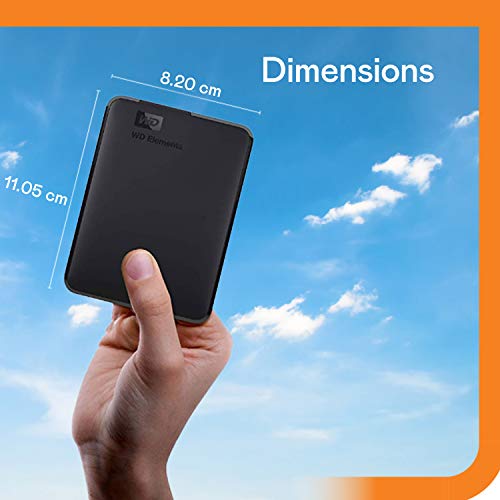





We also considered 10 others:







Our Top Choice
Compare Features


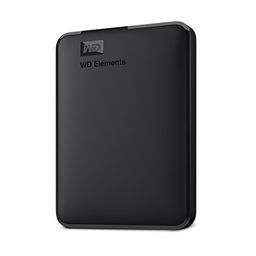


The order above is not editorial opinion, and it is not paid placement. It comes from what shoppers across our network actually do - which portable external hard drives they compare, and which they ultimately buy. We re-rank as new data comes in, so the long-term favorites have to keep earning their spot against new entrants. The full method, including how we make money.
Portable External Hard Drives Buyer's Guide
Portable external hard drives trade low cost per terabyte and pocketable backup capacity against the fragility and slower sustained speeds of spinning disks. The sharpest checks are whether the drive is safe for your actual workflow—travel, photo/video dumps, console storage, or laptop backup—and whether you have a second copy, because a portable HDD should never be the only home for irreplaceable files.
Reliability
Reliability matters because a hard drive’s real value is in keeping your data readable and available over years of use, not just offering enough capacity on day one. Look for signs of build quality such as an appropriate workload rating, warranty coverage, heat management, and whether the drive is designed for your use case, and be wary of using a basic desktop drive for constant backups, NAS use, or other always-on workloads.
Choose for reliability by treating the drive as a backup device, not a permanent single-copy archive: look for a 2.5-inch bus-powered model with a snug USB connector, a short sturdy cable, a decent enclosure that does not flex, and compatibility with SMART/diagnostic tools where possible. Avoid running it while it is being moved, leaving it dangling from a laptop, or packing it loose in a bag without a case; portable HDD failures often come from drops, cable strain, or disconnects during writes. Owner feedback supports that many portable drives are seen as dependable everyday backup drives for files, projects, media, and travel, with compact builds that feel sturdy enough for normal carry, but the safe buying assumption is still to keep at least one additional backup elsewhere.
Capacity
Storage capacity determines how much you can keep on the drive, from documents and photos to large video files, backups, and game libraries. Choose enough storage for what you have now plus room to grow, and watch for the difference between advertised capacity and the slightly lower usable space your computer reports after formatting.
Size capacity around your backup plan, not just today’s free-space problem: allow room for versioned backups, duplicate photo/video shoots, game libraries, and future growth, and remember that formatted usable space is lower than the advertised decimal capacity. If you back up a 1TB laptop, a 2TB drive can be sensible for basic overflow, while large media libraries, console storage, or multi-device backups often justify higher capacities; also check whether your device, console, router, or backup software has maximum-capacity or file-system limits. Owners consistently like the large amount of storage these drives provide for photos, videos, games, laptop files, documents, and backups, especially because compact portable drives can still hold substantial libraries without moving to SSD-level cost.
Usability
You want a hard drive that’s easy to set up, mount, and start using without confusing formatting steps or compatibility surprises. Look for clear installation requirements, simple backup or file-management options, and a design that fits how you’ll use it day to day; watch out for drives that require extra adapters, software, or technical setup that could slow you down.
Check usability by matching the file system and connector to every device you plan to use: Windows backup may prefer NTFS, macOS Time Machine may require APFS or Mac OS Extended, cross-platform shuttling often works best with exFAT, and consoles or DVR-like devices may reformat the drive for exclusive use. Confirm whether you need USB-A, USB-C, an adapter, or a cable with enough clearance, and be cautious with bundled password/encryption utilities if you need long-term access across operating systems. Owner reports broadly support easy plug-and-play setup, quick recognition by computers, and simple everyday transfers, but careful shoppers should still expect occasional reformatting or setup choices before the drive is truly ready for their workflow.
Size
Size affects how easily you can carry a hard drive, fit it into your workspace, or tuck it into a laptop bag alongside other gear. If you travel often or work between locations, look for a compact, durable design that does not add bulk; if it will stay on a desk, make sure its footprint, cable layout, and ventilation needs fit your setup.
For size, prioritize a drive that is small enough to travel safely but not so minimal that the port, cable, or enclosure feels vulnerable; a pocketable drive should still fit in a padded sleeve and lie flat near the laptop during transfers. Higher-capacity portable HDDs can be slightly thicker, so check bag, case, desk, and console-space clearance, and avoid setups where the drive hangs from a short cable or sits where it can be knocked while spinning. Owners strongly value slim, lightweight designs that are easy to keep on a desk, in a bag, in a camera case, or between workspaces while still offering plenty of storage for backups and large file dumps.
Value
Value matters because you want a hard drive that gives you dependable storage capacity and performance without paying for features you do not need. Look at the cost relative to capacity, reliability expectations, warranty coverage, and intended use, since the cheapest option can cost more in the long run if it is slow, noisy, or failure-prone. A good value drive should feel appropriately priced for how much data it holds, how often you will use it, and how much you trust it with your files.
Evaluate value by cost per usable terabyte plus risk controls: a cheap portable HDD is a strong buy for backup and cold storage, but not if it replaces the second copy you still need, lacks a reliable cable, or saves little compared with a better-supported model. HDDs usually offer much more capacity for the money than portable SSDs, but if you edit directly from the drive, travel roughly, or need frequent large transfers, the cheaper drive can cost time or raise failure risk. Owner sentiment backs the value case: shoppers often feel portable drives deliver a lot of room for backups, games, photos, phone videos, work files, and everyday overflow without much hassle.
Speed
Speed affects how quickly you can boot a system, open large files, run applications, and move data on or off the drive. Look for strong real-world transfer performance, not just headline specs, and remember that the drive’s connection type, your computer’s ports, and the kind of files you move can all limit actual speed.
Buy for speed by separating backup speed from working-drive speed: a portable HDD is fine for scheduled backups and moving folders, but if you edit 4K video, process RAW photos directly, run active game libraries, or move hundreds of gigabytes at a time, a portable SSD or a faster workflow may be the better fit. Do not assume a USB 3.x label means SSD-like performance—the spinning disk, drive cache, file size mix, file system, cable, and computer port all affect real speed, and long writes can slow after the cache fills. Owner feedback reflects this split: many users find transfers quick enough for routine backups, photos, videos, and work files, while larger uploads, mixed compatibility situations, or individual drive issues can lead to slower-than-expected transfers, reconnects, disk errors, or troubleshooting.
1,000,000+ shoppers use Buyer's Guide every week to find the best products and services online.

Helping millions of users make smarter purchases online.