










We also considered 10 others:






Our Top Choice
Compare Features


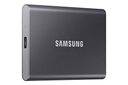
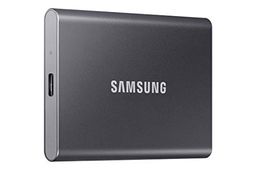


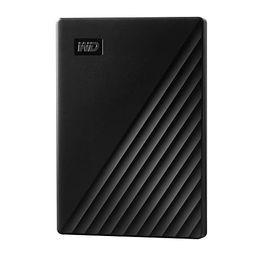




The order above is not editorial opinion, and it is not paid placement. It comes from what shoppers across our network actually do - which hard drives they compare, and which they ultimately buy. We re-rank as new data comes in, so the long-term favorites have to keep earning their spot against new entrants. The full method, including how we make money.
Hard Drives Buyer's Guide
Hard-drive shopping is mostly a tradeoff between cheap bulk storage and SSD-class speed, with portability and connection compatibility deciding whether the drive actually fits your workflow. The sharpest risks are buying a drive your device cannot run at full speed, relying on one drive as your only backup, or choosing an HDD for a job that needs shock resistance or sustained high write speed.
Reliability
Reliability matters because a hard drive’s real value is in keeping your data readable and available over years of use, not just offering enough capacity on day one. Look for signs of build quality such as an appropriate workload rating, warranty coverage, heat management, and whether the drive is designed for your use case, and be wary of using a basic desktop drive for constant backups, NAS use, or other always-on workloads.
For reliability, treat the drive as one layer of a backup plan, not the only copy: look for SMART/health monitoring, a clear warranty, good thermal behavior on SSDs, and a sturdy connector/cable on portable drives; for NAS or always-on storage, avoid ordinary portable drives and check for workload-rated models and CMR recording rather than SMR when sustained writes matter. If the drive will travel, favor SSDs or ruggedized enclosures because spinning HDDs are more vulnerable to drops while running. Owner feedback supports this caution: shoppers commonly describe portable backup drives as dependable for everyday files, photos, projects, and media, while internal Gen4 SSDs are often praised as stable under heavy workloads with reports of trouble-free use and no crashes, data loss, or failures so far.
Capacity
Storage capacity determines how much you can keep on the drive, from documents and photos to large video files, backups, and game libraries. Choose enough storage for what you have now plus room to grow, and watch for the difference between advertised capacity and the slightly lower usable space your computer reports after formatting.
For capacity, buy based on the size of the source device plus backup history, not just today’s files: a safe backup drive should usually exceed the computer’s internal storage, and photo/video/game libraries can consume multiple terabytes quickly. Remember that usable formatted capacity is lower than the labeled number, and leave headroom so backups, SSD wear leveling, and large file transfers do not bog down near full capacity. Owner sentiment lines up with this: buyers consistently value 2TB to 5TB portable drives for large backups, photos, videos, documents, games, and file hoarding, especially when they want lots of space without SSD-level cost.
Speed
Speed affects how quickly you can boot a system, open large files, run applications, and move data on or off the drive. Look for strong real-world transfer performance, not just headline specs, and remember that the drive’s connection type, your computer’s ports, and the kind of files you move can all limit actual speed.
For speed, match the drive type and interface to the task: HDDs are fine for cold backups and media archives but are slow for app launches, game loading, editing caches, and large daily transfers; SATA SSDs are a strong general upgrade, while NVMe Gen4 drives only make sense if the PC, slot, enclosure, cable, and cooling can support them. Check both read and sustained write speeds, because some drives slow sharply after cache fills or when they overheat during long video/photo dumps. Owner reports reinforce this split: SSD buyers frequently notice faster booting, snappier apps, and quick large transfers, while high-end Gen4 internal drives are praised for major speed jumps and fast real-world system response.
Usability
You want a hard drive that’s easy to set up, mount, and start using without confusing formatting steps or compatibility surprises. Look for clear installation requirements, simple backup or file-management options, and a design that fits how you’ll use it day to day; watch out for drives that require extra adapters, software, or technical setup that could slow you down.
For usability, check the exact connection and formatting before buying: USB-C does not always mean high speed, USB-A adapters may be needed, macOS/Windows sharing may require exFAT, and Time Machine or encrypted backups may need reformatting. For internal drives, verify form factor and fit—M.2 length and keying, PCIe generation, motherboard slot availability, heatsink clearance, 2.5-inch SATA bay/cable, or 3.5-inch desktop power requirements. Owner sentiment is positive here, with many buyers describing external drives as plug-and-play, easy to reformat, and straightforward for Windows, Mac backups, PCs, NAS setups, and external startup-disk use.
Value
Value matters because you want a hard drive that gives you dependable storage capacity and performance without paying for features you do not need. Look at the cost relative to capacity, reliability expectations, warranty coverage, and intended use, since the cheapest option can cost more in the long run if it is slow, noisy, or failure-prone. A good value drive should feel appropriately priced for how much data it holds, how often you will use it, and how much you trust it with your files.
For value, compare cost per usable terabyte against the job: HDDs usually win for large backup sets and archives, while SSDs are worth paying for when drops, travel, boot drives, active projects, or frequent transfers matter. Do not pay for Gen4 or ultra-fast external claims if your laptop, console, enclosure, or port cannot reach those speeds; also budget for any needed cable, enclosure, heatsink, backup software, or second drive for redundancy. Owner feedback supports this value split: buyers like high-capacity portable drives for inexpensive bulk storage, while SSD owners often feel they get strong value when the upgrade delivers noticeable speed and capacity gains.
Size
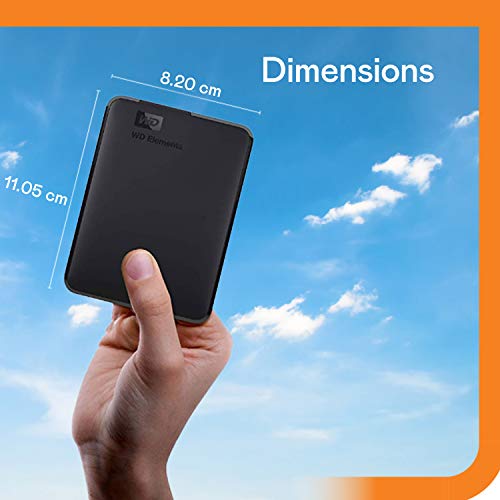
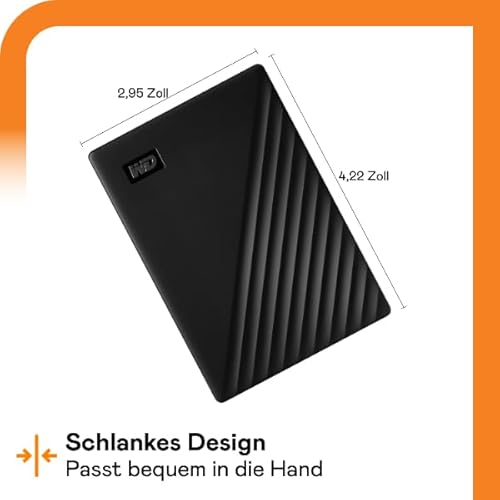
Size affects how easily you can carry a hard drive, fit it into your workspace, or tuck it into a laptop bag alongside other gear. If you travel often or work between locations, look for a compact, durable design that does not add bulk; if it will stay on a desk, make sure its footprint, cable layout, and ventilation needs fit your setup.
For size, confirm both physical fit and carrying reality: M.2 drives must match the supported length, 2.5-inch drives need the right bay or enclosure, and 3.5-inch HDDs are not pocket-portable because they generally need external power. For travel, a tiny SSD is easier and more shock-tolerant than a portable HDD; for desk archives, a thicker high-capacity HDD may be acceptable if you can tolerate the cable, vibration, and space. Owner sentiment backs the appeal of compact storage, with buyers repeatedly praising slim, lightweight portable drives that fit in pockets, laptop bags, camera bags, desks, and workspaces while still holding large backups and file collections.
1,000,000+ shoppers use Buyer's Guide every week to find the best products and services online.

Helping millions of users make smarter purchases online.