






















We also considered 10 others:





Our Top Choice
Compare Features


The order above is not editorial opinion, and it is not paid placement. It comes from what shoppers across our network actually do - which desktop computers they compare, and which they ultimately buy. We re-rank as new data comes in, so the long-term favorites have to keep earning their spot against new entrants. The full method, including how we make money.
Desktop Computers Buyer's Guide
Desktop computers force a tradeoff between low upfront cost, upgradeability, and how much risk you accept from refurbished or bundled hardware. The sharpest checks are component condition, display/network compatibility, and whether the form factor—tower, mini PC, gaming desktop, or all-in-one—can actually support your workload and future repairs.
Reliability
A reliable desktop PC should run consistently under your everyday workload without frequent crashes, overheating, or premature part failures. Look for solid build quality, good cooling, dependable power delivery, and components that are easy to service or upgrade, and be wary of systems that cut corners on case construction, airflow, or generic internal parts.
For reliability, treat desktop condition and component quality as the main buying risk, especially with refurbished office towers, mini PCs, and low-cost gaming builds. Check that the seller states the processor generation, storage type, RAM amount, power-supply capacity, operating-system activation, warranty/return window, and whether the unit was tested under load; avoid vague listings that only say “renewed” without drive health, port testing, or cosmetic-grade details. Owner feedback supports this caution: many buyers report clean units that run well for the money, but others run into serious drive, GPU, power-supply, shutdown, update/reset, black-screen, crash, cosmetic-wear, or connectivity failures that require troubleshooting or returns.
Performance
Performance determines how quickly your desktop feels in daily use and whether it has enough power for gaming, streaming, creative work, and multitasking without stutter or long waits. Look for a balanced CPU, graphics card, memory, and fast storage that match what you actually do, and watch for systems that emphasize one impressive part while cutting corners on cooling, RAM, or upgrade room.
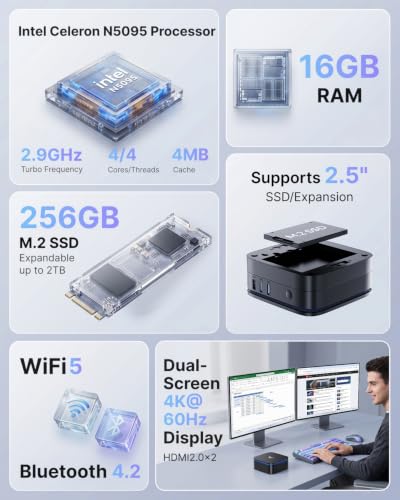
For performance, match the desktop form factor to the workload instead of assuming all desktops are upgradeable powerhouses. For office, school, streaming, and browsing, prioritize a modern multi-core CPU, SSD storage, and enough RAM for heavy browser tabs; for gaming or creative work, verify the exact dedicated GPU, video memory, cooling, and power supply, because older budget GPUs can be playable but are not equivalent to current high-end cards. Owner sentiment lines up with that split: buyers are often happy with smooth everyday multitasking and basic replacement-PC speed, while budget gaming systems are praised for playable mainstream titles when expectations stay realistic.
Value
You want a desktop that feels worth what you pay, not just one with impressive specs on paper. Look for a balanced mix of processor performance, memory, storage, upgrade options, build quality, and included essentials, and watch out for systems that cut corners in areas like cooling, expandability, or bundled peripherals to hit an attractive price.
For value, compare the whole usable system, not just the desktop tower headline. A good deal should include enough RAM, SSD capacity, a supported operating system, the ports you need, working wireless if required, and a clear return policy; bundles with monitors and accessories can be convenient, but only if the display connection, cable quality, keyboard/mouse condition, and upgrade limits are acceptable. Owners frequently describe these desktops as strong value for basic home, office, school, and mainstream gaming use, especially refurbished or bundled setups, but the value drops quickly if you must replace adapters, storage, power components, or included accessories.
Setup
A desktop PC that’s easy to set up lets you get from the box to a usable workspace with less frustration, especially if you’re buying for a beginner or someone who doesn’t want to troubleshoot hardware and software right away. Look for clear instructions, well-labeled ports, included essentials when needed, and a simple first-run setup process; watch out for systems that require extra adapters, manual driver installs, or confusing account and security prompts before you can start using them comfortably.
For setup, check the exact out-of-box requirements before buying: whether the operating system is already installed and activated, whether a monitor cable is included, which display output the computer uses, whether Wi‑Fi is built in or handled by a USB dongle, and whether the keyboard/mouse are wired or wireless. This matters because many desktop frustrations happen before performance is ever tested—wrong video cable, no network connection, missing adapter, or a reset/update loop. Owner feedback is mostly encouraging here, with many buyers saying setup is quick, simple, and ready to use, but the smoother experiences depend on having the right connections and accessories from the start.
Connectivity
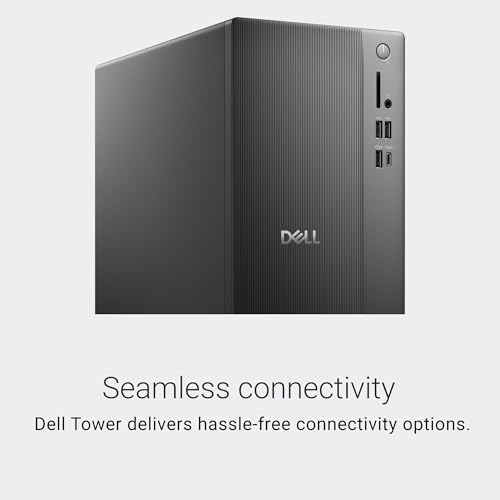
Connectivity determines how easily your desktop fits with the monitor, keyboard, storage drives, speakers, network, and other peripherals you already use or may add later. Look for enough easily accessible USB ports, the right display outputs for your monitor setup, reliable Ethernet and Wi‑Fi options, and Bluetooth if you use wireless accessories. Watch out for compact systems with limited ports or hard-to-reach connections, since adapters and hubs can add clutter and inconvenience.
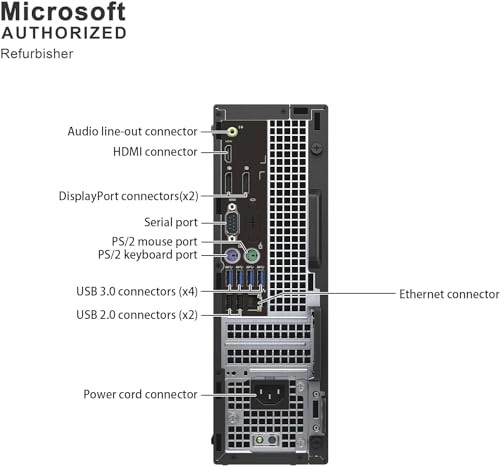
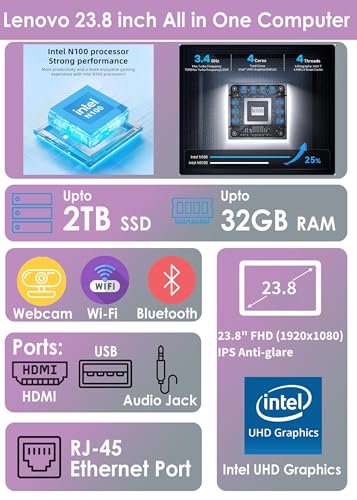
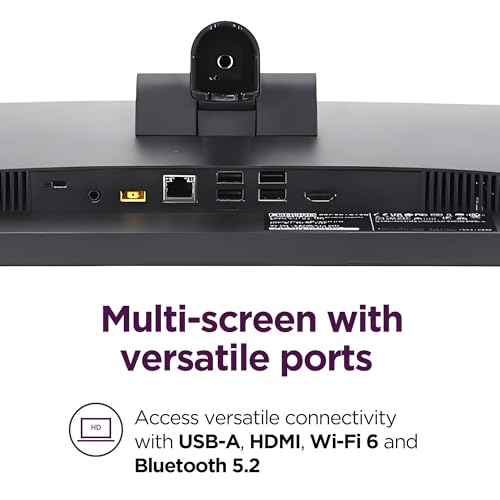
For connectivity, audit ports and wireless hardware as carefully as CPU and storage specs. Confirm the number and type of USB ports, Ethernet, audio jacks, Bluetooth, Wi‑Fi standard, and monitor outputs; if you use multiple monitors, check supported resolutions and whether the outputs are HDMI, DisplayPort, VGA, or something requiring an adapter. Owner reports make this the clearest watch-out: many systems work fine once connected, but recurring complaints involve unreliable Wi‑Fi dongles, networks not appearing, wireless adapters that detect Wi‑Fi but do not provide internet, wake/connectivity issues, missing monitor cables, and the need for unexpected adapters.
Design
Because a desktop PC often sits in plain view, its appearance can affect how well it fits into your workspace, gaming setup, or home office. Look for a design that matches your taste and room layout while still supporting practical needs like good airflow, easy access to ports, and enough space for future upgrades. Be careful not to choose looks alone, since flashy lighting, unusual shapes, or compact cases can sometimes make the system louder, hotter, or harder to service.
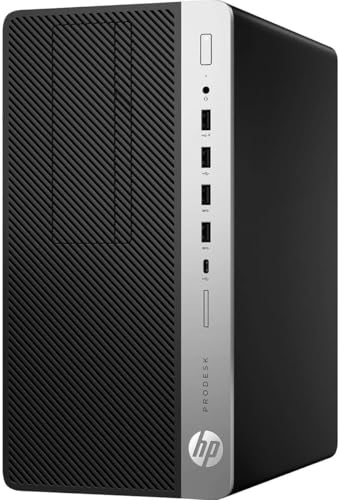
For design, choose the chassis around desk space, upgrade needs, noise, and repairability. Mini PCs and all-in-ones save space and look tidy but usually limit GPU, storage, cooling, and screen-replacement flexibility; towers take more room but are easier to service, expand, and cool, while gaming-style cases should still be judged by airflow and component access rather than lighting alone. Owner sentiment is positive on first impressions—buyers like compact sizing, slim all-in-one layouts, clean refurbished appearances, polished bundles, and attractive cases—but design is only a win if it does not block future upgrades or make failed parts hard to replace.
1,000,000+ shoppers use Buyer's Guide every week to find the best products and services online.

Helping millions of users make smarter purchases online.