












We also considered 10 others:





Our Top Choice
Compare Features


The order above is not editorial opinion, and it is not paid placement. It comes from what shoppers across our network actually do - which desktop pcs they compare, and which they ultimately buy. We re-rank as new data comes in, so the long-term favorites have to keep earning their spot against new entrants. The full method, including how we make money.
Desktop PCs Buyer's Guide
Desktop PC shopping is mostly a tradeoff between compact, inexpensive, ready-to-use systems and towers with enough graphics power, ports, cooling, and upgrade room for the jobs you actually run. The sharpest checks are whether the machine has the right display/network connections on day one and whether its CPU, GPU, storage, power supply, and form factor leave you stuck when you want to game, add drives, or run Windows 11 smoothly.
Performance
Performance determines how quickly your desktop feels in daily use and whether it has enough power for gaming, streaming, creative work, and multitasking without stutter or long waits. Look for a balanced CPU, graphics card, memory, and fast storage that match what you actually do, and watch for systems that emphasize one impressive part while cutting corners on cooling, RAM, or upgrade room.
For performance, buy around your real workload: an SSD is effectively mandatory for a snappy desktop, 16GB of memory is a safer floor for multitasking, and gaming or creation work needs a dedicated GPU that matches the games, monitor resolution, and settings you expect—not just a listing that says “gaming.” Small-form-factor and mini desktops can be excellent for browsing, office work, streaming, media serving, and light multitasking, but they often have limited GPU, cooling, and upgrade headroom; older dedicated graphics can still be fine for mainstream games if you accept moderate settings rather than expecting current high-end performance. Owner feedback supports this split: everyday desktops are often described as fast for startup, office apps, browsing, streaming, business use, and light gaming, while budget gaming towers earn praise for playable frame rates in popular competitive titles when buyers understand the GPU is not top-tier modern hardware.
Value
You want a desktop that feels worth what you pay, not just one with impressive specs on paper. Look for a balanced mix of processor performance, memory, storage, upgrade options, build quality, and included essentials, and watch out for systems that cut corners in areas like cooling, expandability, or bundled peripherals to hit an attractive price.
For value, look past the headline configuration and check the parts that determine the desktop’s usable lifespan: Windows 11 compatibility, SSD capacity, memory amount and expandability, genuine dedicated graphics if needed, included Wi‑Fi/Bluetooth, display outputs, and whether the power supply and case allow future upgrades. Refurbished or budget desktops can be strong buys for home computing and office work, but the best value is the one that does not force immediate adapter purchases, storage replacement, or a full system upgrade when your needs grow. Owner sentiment repeatedly backs the appeal of inexpensive desktops for basic home, work, Windows 11 replacement, everyday computing, and mainstream gaming, with many buyers feeling the capability delivered strong value for the money.
Reliability
A reliable desktop PC should run consistently under your everyday workload without frequent crashes, overheating, or premature part failures. Look for solid build quality, good cooling, dependable power delivery, and components that are easy to service or upgrade, and be wary of systems that cut corners on case construction, airflow, or generic internal parts.
For reliability, desktop buyers should treat refurb status, power supply quality, storage health, cooling airflow, and wireless hardware as risk points to verify immediately during the return window. On arrival, inspect the case and ports, confirm the listed CPU/RAM/storage are present, run operating-system updates, test Wi‑Fi/Bluetooth, connect every monitor, and stress-test storage, graphics, and sleep/wake behavior; freezing, random restarts, drive errors, GPU issues, PSU instability, or peripheral dropouts are red flags. Owner reports are broadly positive for many everyday office, home server, media, and expandable desktop uses, but they also show uneven long-term experiences, with some units staying smooth while others develop drive, GPU, PSU, connectivity, freezing, restart, or wireless/peripheral problems.
Setup
A desktop PC that’s easy to set up lets you get from the box to a usable workspace with less frustration, especially if you’re buying for a beginner or someone who doesn’t want to troubleshoot hardware and software right away. Look for clear instructions, well-labeled ports, included essentials when needed, and a simple first-run setup process; watch out for systems that require extra adapters, manual driver installs, or confusing account and security prompts before you can start using them comfortably.
For setup, confirm before buying that the desktop includes the operating system you expect, supports your monitor connectors, has enough USB ports for keyboard/mouse/webcam/printer, and can join your network without relying on a weak or missing adapter. If you are replacing an older PC, plan for data transfer, account sign-in, software reinstallation, BitLocker or license issues, and whether your existing monitor uses HDMI, DisplayPort, VGA, or DVI; a “ready to use” desktop can still stall if the cable or wireless hardware is wrong. Owner feedback generally says setup is quick, straightforward, beginner-friendly, and easy to connect for home, office, work-from-home, and Windows 11 replacement use, especially when the needed ports and peripherals are already compatible.
Connectivity
Connectivity determines how easily your desktop fits with the monitor, keyboard, storage drives, speakers, network, and other peripherals you already use or may add later. Look for enough easily accessible USB ports, the right display outputs for your monitor setup, reliable Ethernet and Wi‑Fi options, and Bluetooth if you use wireless accessories. Watch out for compact systems with limited ports or hard-to-reach connections, since adapters and hubs can add clutter and inconvenience.
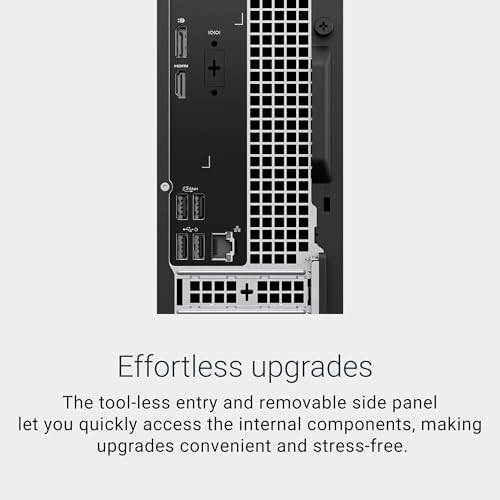
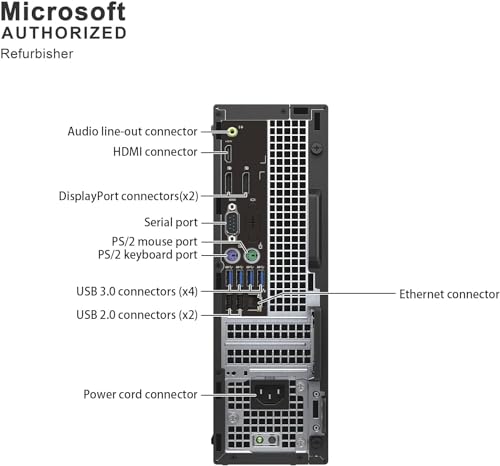
For connectivity, check the exact rear-panel and front-panel ports against your devices before purchasing: number and type of display outputs, USB-A versus USB-C, Ethernet, audio jacks, SD card needs, and whether Wi‑Fi and Bluetooth are built in or supplied by a small USB dongle. This matters especially with refurbished, small-form-factor, and office desktops, where monitor output can be DisplayPort-only, Wi‑Fi may not be integrated, Bluetooth may be absent, and using a USB wireless adapter can consume a port or create setup trouble; also verify support for dual monitors if you need it. Owner sentiment makes connectivity the clearest watch-out: buyers report missing or troublesome wireless features, Bluetooth issues, wrong or absent monitor cables, Wi‑Fi adapters that see networks but fail to provide internet, network setup trouble, port troubleshooting, and compatibility problems with older devices or older operating-system setups, even though many systems still work plug-and-play for common home and office arrangements.
Noise
A desktop’s noise level affects how comfortable it is to use in a home office, bedroom, studio, or shared space, especially during long sessions. Look for quiet operation at idle and under load, with good airflow, larger or well-controlled fans, and a case design that does not amplify vibration. Be wary of compact or poorly cooled systems that may sound fine during light tasks but become distracting when gaming, rendering, or running intensive workloads.
For noise, match the case and cooling design to where the desktop will live: a desk, bedroom, studio, or home office needs low idle noise and no high-pitched fan whine, while gaming towers need enough airflow that fans do not ramp aggressively under load. Mini PCs and small office desktops can be quiet for light work but may become more noticeable when heat builds; gaming systems should have clean cable routing, adequate intake/exhaust, and cooling sized for the CPU and GPU rather than relying on flashy case styling alone. Owner feedback is encouraging here, with many buyers praising quiet operation for desk, office, media, and mini-server use, and some gaming-style systems noted for staying cool while fans or liquid cooling remain very quiet.
Don't miss the latest sales on Desktop PCs and more. Get the best Black Friday deals today!

1,000,000+ shoppers use Buyer's Guide every week to find the best products and services online.

Helping millions of users make smarter purchases online.