





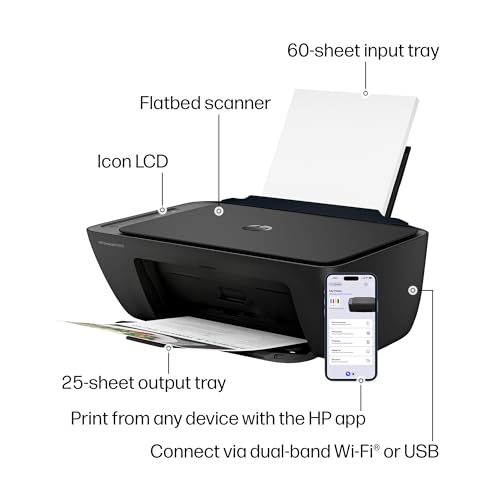


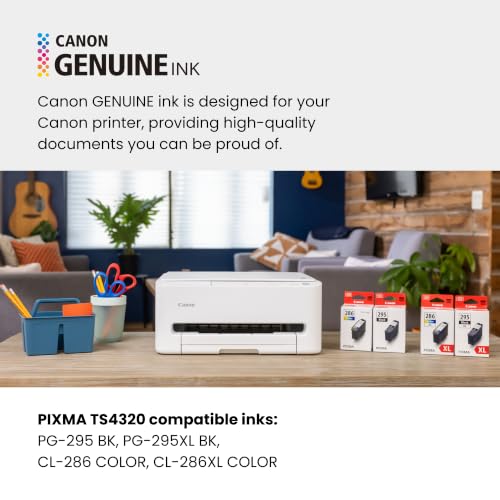


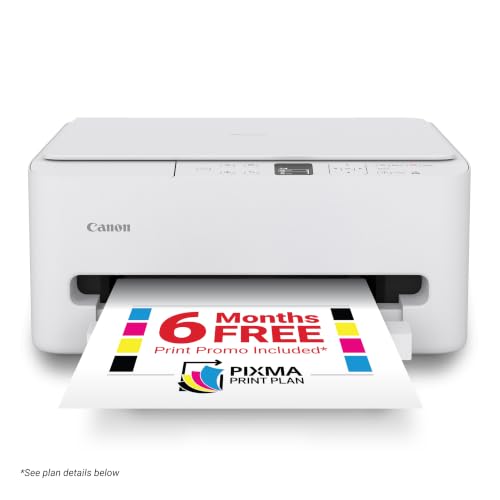


We also considered 10 others:





Our Top Choice
Compare Features


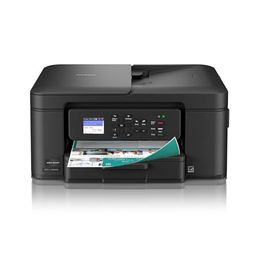


The order above is not editorial opinion, and it is not paid placement. It comes from what shoppers across our network actually do - which wi-fi printers they compare, and which they ultimately buy. We re-rank as new data comes in, so the long-term favorites have to keep earning their spot against new entrants. The full method, including how we make money.
Wi-Fi Printers Buyer's Guide
Wi-Fi printers trade cable-free convenience across phones, laptops, and shared home-office spaces against a higher risk of app, driver, sleep-mode, and router headaches. The smartest choice depends on whether you mainly need crisp black-and-white documents, color school and office pages, or photo output—and on whether the printer will stay reliably connected when you actually need it.
Quality
Print quality determines how sharp your text looks, how clear fine details appear, and how accurately colors reproduce in photos, graphics, and presentations. You’ll want to look for crisp lettering, smooth gradients, consistent color, and minimal banding or smudging, while remembering that results can vary by paper type, ink or toner, and print settings.
Choose print technology for the work you actually send over Wi-Fi: monochrome laser for sharp school, tax, shipping, and office documents; color inkjet or tank ink for photos and mixed color pages; dedicated photo/thermal models only when their media size and color limits fit the job. For photos, check borderless-size support, whether the mobile app crops to fixed ratios, and whether pigment/dye inks match your need for text sharpness versus color vibrancy; for documents, prioritize clean small text, duplex alignment, and copy/scan clarity over inflated resolution specs. Owner feedback supports this split: buyers often praise crisp black-and-white laser output, clean everyday text, strong color results, and especially pleasing photo color when the printer type matches the task.
Speed
Print speed matters if you often produce long documents, multiple copies, or last-minute pages, because a slow printer can turn small tasks into bottlenecks. Look beyond the headline pages-per-minute rating and consider how quickly the first page comes out, whether speed drops for color or duplex printing, and how well the printer handles larger files without long processing delays.
Do not judge a Wi-Fi printer by headline pages-per-minute alone; check first-page-out from sleep, time to wake after being idle, duplex speed, ADF scan/copy speed, and whether large PDFs or phone photo jobs stall over wireless. If you print batches for school or work, laser models usually feel faster for routine documents, while color inkjets and photo printers may slow down on high-quality images, borderless prints, or mobile-app workflows. Owner sentiment lines up with this: many users report quick setup, fast first pages, and responsive everyday document printing, but some still find printing slow or frustrating once they move beyond basic documents, especially with phone photo jobs.
Reliability
A reliable printer saves you time and frustration by completing jobs without frequent paper jams, error messages, dropped connections, or half-printed pages. Look for signs that it handles your typical workload and paper types consistently, and watch out for models with complaints about misfeeds, stalled print queues, or needing frequent resets.
For Wi-Fi printers, reliability is as much about firmware, cartridges, sleep behavior, and app dependence as mechanical build; look for a clear recommended monthly volume, replaceable consumables, manual-feed and jam access, and the ability to keep printing without a cloud service or fragile validation step. Infrequent users should be wary of ink drying or clogging, while higher-volume users should avoid undersized all-in-ones that lack duty-cycle headroom; anyone relying on scanning or duplexing should check reviews for feed errors, skew, and failures after updates. Owners describe reliability as uneven: some units handle large jobs, scanning, duplexing, and multiple devices well, while others develop setup issues, cartridge validation problems, slow starts, or early operating failures.
Connectivity
Connectivity determines how easily you can print from the devices you actually use, whether that’s a computer, phone, tablet, or shared office network. Look for reliable Wi-Fi, useful wired options if you need stability, and straightforward mobile or app setup; watch out for printers that are finicky to pair, drop off the network, or require awkward workarounds for everyday printing.
Connectivity is the category’s biggest make-or-break issue: confirm support for your exact environment before buying, including 2.4 GHz versus 5 GHz Wi-Fi, WPA/WPA2/WPA3 router settings, AirPrint, Mopria, Chromebook compatibility, mobile OS support, and whether Ethernet or USB is available as a fallback. Prefer models that can print locally without requiring the vendor app or cloud account, can be assigned a stable IP address, and reliably wake from sleep when a phone or laptop sends a job. Owner reports strongly reinforce this caution: while some users find phone pairing and everyday mobile printing simple, recurring complaints mention dropped Wi-Fi, sleep-mode disconnects, driver problems, repeated reconnecting after router or printer reboots, and needing resets, cables, or support to print again.
Setup
Setup matters because a printer that is hard to install can turn a simple purchase into driver conflicts, connectivity issues, or repeated troubleshooting before you ever print a page. Look for clear first-time instructions, reliable Wi-Fi or wired connection options, and driver support for the devices you use. Watch out for printers that require complicated account creation, unclear app-based setup, or limited compatibility with your computer or mobile devices.
A good setup path for a Wi-Fi printer should let you complete network joining, firmware updates, driverless printing, test pages, scanning, and mobile printing in one session without forcing unnecessary subscriptions or accounts. Before buying, check whether your devices can use native AirPrint/Mopria/OS drivers, whether the app is required for scanning or ink management, and whether the printer has a usable screen or buttons for reconnecting when the router changes. Owner feedback is mostly encouraging here: many buyers report quick unboxing-to-first-print experiences, straightforward app or phone pairing, easy home-office setup, and especially smooth installs with native wireless printing standards.
Value
Value matters because the cheapest printer can become expensive if ink, toner, maintenance, or paper handling costs add up quickly. Look for a printer whose performance matches what you actually print—documents, photos, or high-volume jobs—and watch for models that seem affordable upfront but have costly consumables or features you will not use.
Value depends less on the purchase cost than on your real monthly page mix: high-volume black-and-white users should compare toner yield and drum costs; color households should compare tank/refill yields versus cartridge lock-in; occasional users should consider whether ink may dry before it is used. Also factor in duplex printing, automatic document feeding, replacement printheads, maintenance boxes, required subscriptions, and whether third-party or high-yield consumables are allowed. Owner sentiment supports these value drivers: users often see monochrome laser as economical for document-heavy printing, refillable tanks as reducing cartridge anxiety, inkless or thermal designs as avoiding ink costs for their limited use cases, and basic wireless all-in-ones as good value when their feature set matches routine household or home-office needs.
Don't miss the latest sales on Wi-Fi Printers and more. Get the best Black Friday deals today!

1,000,000+ shoppers use Buyer's Guide every week to find the best products and services online.

Helping millions of users make smarter purchases online.