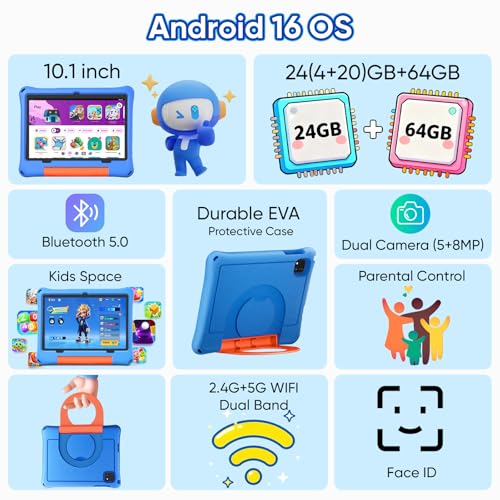

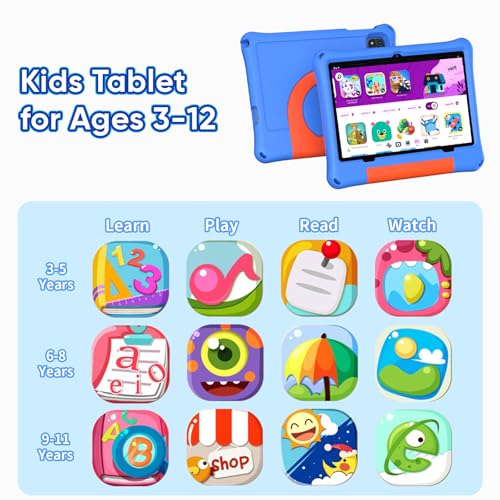













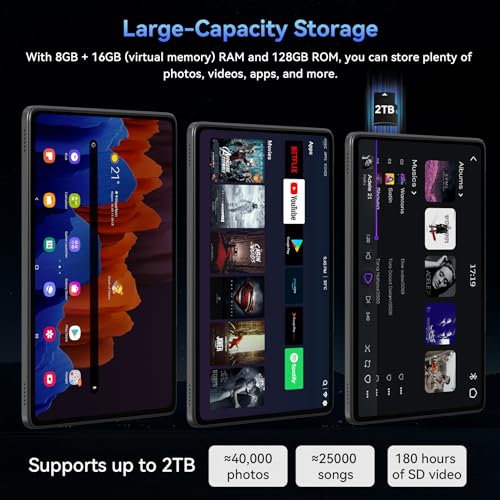


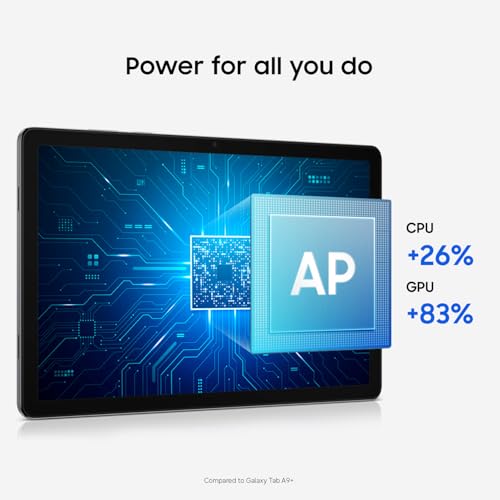







We also considered 10 others:


Our Top Choice
Compare Features


The order above is not editorial opinion, and it is not paid placement. It comes from what shoppers across our network actually do - which google tablets they compare, and which they ultimately buy. We re-rank as new data comes in, so the long-term favorites have to keep earning their spot against new entrants. The full method, including how we make money.
Google Tablets Buyer's Guide
Shopping for a Google/Android tablet is less about chasing the lowest spec sheet and more about avoiding the wrong ecosystem: the tablet should be Play-services certified, updated enough for current apps, and capable of running streaming, school, notes, and family controls without workarounds. The sharpest tradeoffs are cheap hardware with uncertain software support versus better-certified models that feel smoother, safer for kids, and easier to keep useful over time.
Value
A tablet with strong value gives you the features, performance, display quality, battery life, and accessory support you’ll actually use without making you pay for extras that don’t matter to you. Look for a balanced experience at the price: smooth everyday performance, enough storage, reliable software support, and the right screen size and quality for your needs. Watch out for cheap tablets that feel slow or limited quickly, as well as premium options that cost more mainly for features you may never use.
Prioritize value by checking what is actually usable in the Google ecosystem: certified access to the full app store, a current Android version, a credible update path, Widevine support for HD streaming, enough RAM/storage for apps after system space is taken, and microSD support if media or kids’ downloads matter. Avoid “too good to be true” listings that emphasize big numbers but lack clear software certification, update policy, display resolution, or DRM details. Owner feedback supports that budget tablets can still be worthwhile for everyday Android-style use, reading, streaming, music, email, kid entertainment, and light productivity, with many buyers feeling they received capable hardware and practical extras without overpaying.
Performance
You want a tablet that feels responsive when opening apps, switching between tasks, browsing, streaming, or playing games, so performance directly affects how pleasant it is to use every day. Look for enough processing power and memory for the way you use it, and watch out for lower-end tablets that may handle simple tasks fine but slow down with multitasking, demanding apps, or long-term updates.
For performance, match the tablet to the actual Google apps and workloads you plan to use: video calls, Docs or Classroom, split-screen browsing, note-taking, casual games, and streaming all need more than bare-minimum RAM and an old entry chip. Look for a recent processor, at least enough memory to keep multiple apps open, fast internal storage, and a 64-bit Android build; avoid tablets that only feel adequate for one app at a time or that hide the processor model. Owner sentiment suggests many tablets in this space handle browsing, streaming, light productivity, app switching, Roblox-style games, drawing, note-taking, and larger games smoothly, though this should be treated as support rather than a substitute for checking the hardware and software baseline.
Quality
A tablet’s quality affects how well it holds up to daily handling, travel, charging, and repeated use. Look for solid construction, a screen and body that feel well-fitted, dependable performance over time, and units that arrive in clean, working condition without defects, dead pixels, loose parts, or charging issues. Poor reliability or questionable condition on arrival can turn an otherwise capable tablet into a frustrating purchase.
Quality should be judged by the failure points that matter on a Google tablet: sturdy USB-C charging port, reliable Wi-Fi and Bluetooth, accurate touch response, microphones and cameras good enough for video calls, speakers that are usable for lessons or media, and a case or screen protection plan if children will use it. Also check that the device arrives with standard Google setup, stable system software, and no odd app-store limitations or excessive preinstalled clutter. Owner feedback reinforces that many buyers find these tablets light, well-made for the money, easy to set up, quick to connect to the internet, and ready for common needs right out of the box, but a careful shopper should still verify build and software quality before relying on one for school, travel, or family use.
Battery
Battery life determines how long you can use a tablet for browsing, streaming, reading, gaming, or work before you need an outlet. Look for realistic runtime that matches your habits, and pay attention to charging speed and standby drain, since a tablet that lasts all day but takes a long time to recharge may still be inconvenient.
Battery buying should focus on your real Google-tablet routine: streaming with brightness high, Meet-style video calls, navigation, games, and background sync drain far faster than reading or standby. Look for credible mixed-use battery claims, USB-C charging, preferably faster charging, good standby behavior, and enough capacity for travel or a school day; for kids, also consider whether the protective case blocks heat dissipation or the charging port. Owner sentiment is broadly reassuring, with buyers reporting long-lasting batteries for reading, browsing, streaming, entertainment, daily use, and even multiple days of moderate use in some cases, but heavy games and video calls remain the use cases to check most carefully.
Display
A tablet’s display shapes everything from reading and browsing to drawing, gaming, and watching movies, so strong picture quality can make daily use feel sharper and more comfortable. Look for a screen with crisp detail, accurate color quality, good brightness, and wide viewing angles, and watch out for displays that look washed out, overly reflective, or hard to see in bright light.
For display, do not stop at screen size: a Google tablet used for reading, comics, streaming, notes, or drawing should have sufficient resolution, brightness for daylight use, comfortable color/reading modes, responsive touch, and the right DRM level if HD streaming matters. If stylus work is important, check stylus compatibility, palm rejection, and whether the screen is laminated enough to feel precise rather than floaty. Owner feedback specifically praises tablets with paper, color-paper, reading, and normal modes that adapt well to reading, drawing, movies, and comics, which supports the importance of display modes—but shoppers should still verify resolution, brightness, and streaming compatibility directly.
Usability
A tablet should feel easy to navigate and fit smoothly into the way you work, read, stream, or create. Look for practical functionality like intuitive controls, strong app compatibility, reliable file sharing, and support for the input accessories you may need, especially a keyboard or stylus. Watch out for tablets that seem powerful on paper but limit your workflow through awkward multitasking, restricted ports, or accessories that are costly or uncomfortable to use.
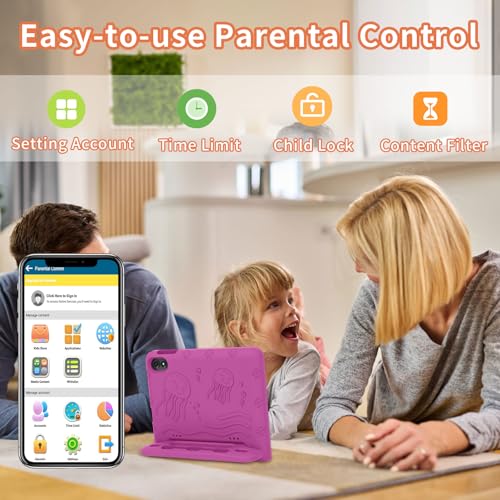
Usability is where Google-tablet shoppers should be most cautious: confirm that the tablet uses the app ecosystem you expect, supports your must-have apps, allows normal account setup, works with Family Link or other parental controls if needed, and has straightforward storage expansion without breaking app installs or downloads. Avoid devices that require sideloading, app-store workarounds, unclear account restrictions, or too much tinkering just to run everyday services. Owner sentiment is mixed here: basic entertainment and reading are often fine, but some users report inconsistent speed, freezing, setup friction, storage-expansion quirks, and ecosystem limits, so the safest choice is the one with the least setup compromise and the clearest app compatibility.
1,000,000+ shoppers use Buyer's Guide every week to find the best products and services online.

Helping millions of users make smarter purchases online.