





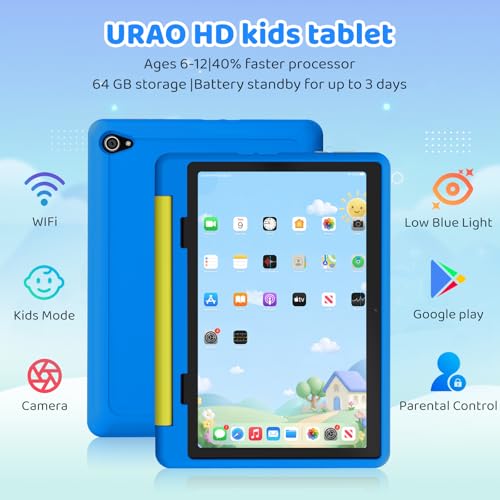






We also considered 10 others:


Our Top Choice
Compare Features


The order above is not editorial opinion, and it is not paid placement. It comes from what shoppers across our network actually do - which wi-fi tablets they compare, and which they ultimately buy. We re-rank as new data comes in, so the long-term favorites have to keep earning their spot against new entrants. The full method, including how we make money.
Wi-Fi Tablets Buyer's Guide
Wi‑Fi tablets are appealing because they avoid cellular plans and keep the device simple, but they depend heavily on your home, school, or hotspot connection and on how well the tablet handles offline content. The sharpest buying risks are app-ecosystem fit, long-term software support, battery health—especially on renewed units—and whether the hardware is strong enough for more than basic streaming and browsing.
Quality
A tablet’s quality affects how well it holds up to daily handling, travel, charging, and repeated use. Look for solid construction, a screen and body that feel well-fitted, dependable performance over time, and units that arrive in clean, working condition without defects, dead pixels, loose parts, or charging issues. Poor reliability or questionable condition on arrival can turn an otherwise capable tablet into a frustrating purchase.
For a Wi‑Fi tablet, quality starts with the parts that are hardest to fix later: a clean, responsive screen, healthy battery, reliable Wi‑Fi radio, current OS support, and an included charger that matches the tablet’s charging spec. If buying renewed or refurbished, check the stated grading, return window, battery-health policy, and whether touch, speakers, cameras, ports, and Wi‑Fi have been tested—not just whether the body looks clean. Owner feedback supports this priority: many renewed tablets arrive looking close to new and working reliably out of the box, but condition standards matter because small blemishes or hidden wear can vary by unit.
Performance
You want a tablet that feels responsive when opening apps, switching between tasks, browsing, streaming, or playing games, so performance directly affects how pleasant it is to use every day. Look for enough processing power and memory for the way you use it, and watch out for lower-end tablets that may handle simple tasks fine but slow down with multitasking, demanding apps, or long-term updates.
Match performance to the actual Wi‑Fi-tablet workload: basic reading, streaming, email, and kids’ apps can be fine on modest hardware, but multitasking, drawing, note-taking, video calls, larger games, and creative apps need a faster processor, more RAM, enough storage, and stable Wi‑Fi. Avoid tablets with very low storage if the user downloads movies, learning apps, or games for offline use, and look for newer Wi‑Fi standards if your home network is busy or you plan to stream in higher quality. Owners generally report smooth everyday use for browsing, streaming, games, travel, and light productivity, while the main complaints cluster around lag, freezing, dropped connections, and sluggish response on weaker models.
Value
A tablet with strong value gives you the features, performance, display quality, battery life, and accessory support you’ll actually use without making you pay for extras that don’t matter to you. Look for a balanced experience at the price: smooth everyday performance, enough storage, reliable software support, and the right screen size and quality for your needs. Watch out for cheap tablets that feel slow or limited quickly, as well as premium options that cost more mainly for features you may never use.
The best value in Wi‑Fi tablets is not simply the lowest upfront cost; it is the lowest cost for the app ecosystem, storage, accessories, update lifespan, and durability you actually need. A cheap tablet can be a good secondary, kids’, or media device, but check whether it requires extra spending for a case, keyboard, stylus, memory card, ad removal, cloud storage, or replacement charger; a renewed higher-tier tablet may be a better buy if it has stronger performance and longer software usefulness. Owner sentiment aligns with this: shoppers often feel budget and renewed tablets deliver strong everyday value for reading, streaming, browsing, email, kids’ entertainment, and casual apps, especially when expectations stay realistic.
Battery
Battery life determines how long you can use a tablet for browsing, streaming, reading, gaming, or work before you need an outlet. Look for realistic runtime that matches your habits, and pay attention to charging speed and standby drain, since a tablet that lasts all day but takes a long time to recharge may still be inconvenient.
For a Wi‑Fi tablet, battery claims should be judged by your heaviest untethered use: video streaming, gaming, video calls, and bright-screen outdoor use drain far faster than reading or light browsing. Look for real-world video-playback endurance, USB‑C charging, fast-charge support, and battery-health disclosure on renewed units; avoid models with reports of weak cords, slow charging, or fast drain if the tablet will be used for travel, school days, or keeping kids entertained away from an outlet. Owners often praise many tablets for lasting through normal daily use, movies, or light browsing, but battery life is also one of the recurring weak spots when expectations include long unplugged sessions.
Usability
A tablet should feel easy to navigate and fit smoothly into the way you work, read, stream, or create. Look for practical functionality like intuitive controls, strong app compatibility, reliable file sharing, and support for the input accessories you may need, especially a keyboard or stylus. Watch out for tablets that seem powerful on paper but limit your workflow through awkward multitasking, restricted ports, or accessories that are costly or uncomfortable to use.
Before choosing a Wi‑Fi tablet, verify that its operating system and app store support the exact apps, school platforms, streaming services, parental controls, stylus features, printing, and file workflows you need. Because there is no built-in cellular connection, also consider offline downloads, hotspot compatibility, captive-portal Wi‑Fi sign-in for hotels or schools, and whether setup is manageable for the intended user—especially a child, older adult, or student. Owner feedback shows many tablets are easy to set up and smooth for browsing, streaming, reading, games, and light work, but app compatibility limits, preloaded apps, slow loading, and crashes are common usability traps on some lower-end options.
Design
A tablet’s appearance matters because it’s something you’ll handle and see often, whether at home, work, school, or on the go. Look for a design and finish that feel polished, durable, and comfortable to hold, and watch out for glossy surfaces or light colors that may show fingerprints, smudges, or wear more easily.
Choose the design around where the Wi‑Fi tablet will live: a lighter 8-inch style is easier for reading and kids, a larger screen is better for split-screen work, drawing, recipes, and video, and a rugged case or reinforced build matters if it will be shared or carried. Check screen brightness, speaker placement, camera orientation for video calls, port type, case availability, keyboard or stylus attachment, and whether the body is comfortable to hold for long sessions. Owners often like clean, sturdy, travel-friendly tablets and many renewed units arrive with little visible wear, though refurbished condition can vary and small scratches may appear even when the tablet works fine.
1,000,000+ shoppers use Buyer's Guide every week to find the best products and services online.

Helping millions of users make smarter purchases online.