

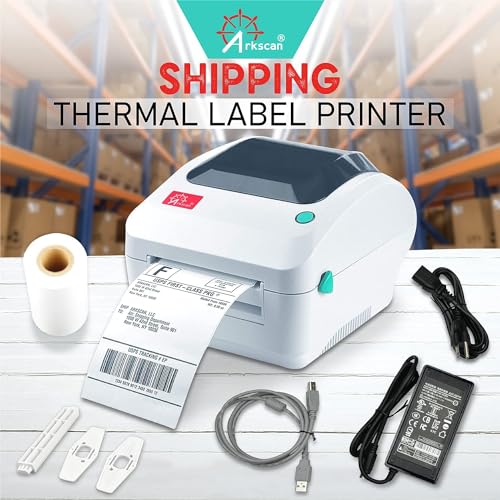


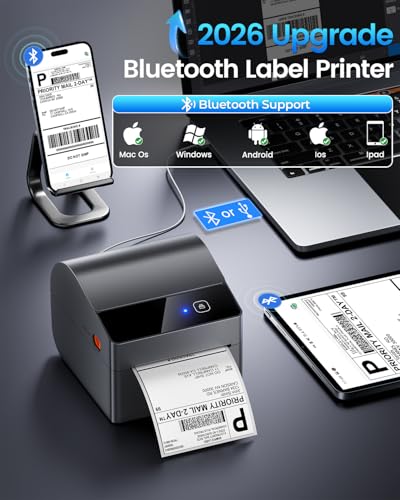


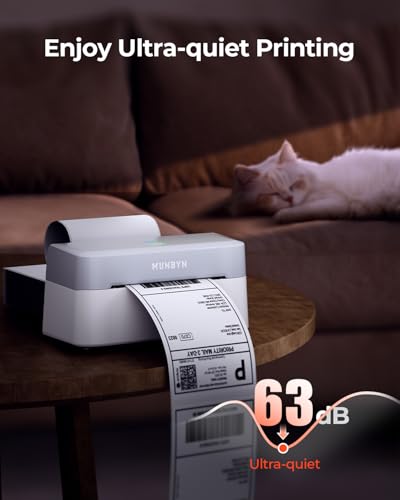


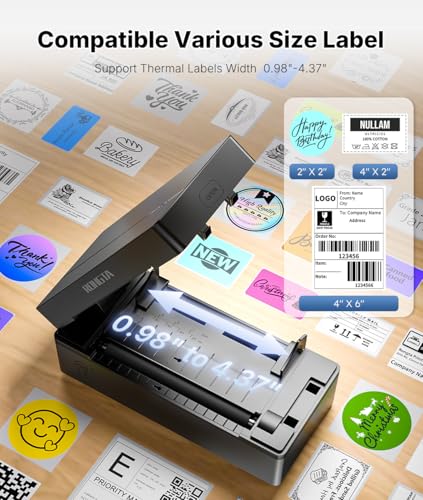


We also considered 10 others:





Our Top Choice
Compare Features


The order above is not editorial opinion, and it is not paid placement. It comes from what shoppers across our network actually do - which shipping label printers they compare, and which they ultimately buy. We re-rank as new data comes in, so the long-term favorites have to keep earning their spot against new entrants. The full method, including how we make money.
Shipping Label Printers Buyer's Guide
Shipping label printers are a tradeoff between speed and supply savings on one side, and software, label calibration, and barcode reliability on the other. The biggest things to protect against are labels that look fine but do not scan, and workflows that require awkward app or driver steps when you are trying to pack orders quickly.
Labels
The labels a printer supports determine what you can actually use it for, from simple address or file labels to durable cable tags, heat-shrink tubing, shipping labels, or outdoor markers. Look for crisp print quality, strong adhesion, and media that matches the surfaces and conditions you need, and watch out for printers that lock you into limited label sizes or materials.
For shipping labels, prioritize reliable 4 x 6 thermal output, wide carrier/marketplace label-size support, and barcode clarity over decorative label features. Check the supported label width range, whether it handles both fanfold stacks and rolls, whether it needs proprietary labels, and whether it can auto-detect gaps/black marks so labels do not drift after a few prints. If you also print product stickers or small QR codes, look for higher resolution and precise alignment controls, because very small codes and specialty shapes are where thermal label printers most often disappoint. Owner feedback supports this: regular shippers value the no-ink workflow, fast label output, and sharp scannable barcodes, while mixed reports point to setup, label choice, connection conditions, roll-feeding, and tiny QR codes as common causes of uneven results.
Printing
You want a label printer that produces sharp, easy-to-read text and barcodes consistently, because smudged, faint, or misaligned labels can slow down organizing, shipping, or inventory tasks. Look for reliable print quality at the label sizes you use most, along with enough speed to handle your typical workload without frequent jams, skips, or reprints.
For printing performance, look for consistent darkness, barcode edge sharpness, and feed accuracy across a full batch—not just a fast pages-per-minute claim. A shipping label printer should let you adjust density and speed, recalibrate easily after changing label stock, and keep 4 x 6 labels aligned so carrier barcodes, addresses, and tracking numbers do not print too light, clipped, or off-center. If you ship high volume, favor models with fast warm-up, stable batch printing, and a simple cutter/tear-off path that will not slow packing. Owners generally praise thermal shipping printers for crisp, professional-looking labels, fast fulfillment, and a major upgrade over ink printers, but mixed feedback shows that specialty stickers or poorly tuned settings can produce lighter output or alignment problems.
Ease
A label printer should make routine tasks faster, not add another device you have to fuss with. Look for straightforward setup, intuitive software or app controls, easy media loading, and clear ways to adjust label sizes, fonts, and templates; watch out for printers that rely on clunky menus, inconsistent connections, or proprietary workflows that slow you down.
For ease of use, buy for your actual shipping workflow: marketplace label download, carrier portal printing, phone app printing, desktop printing, or all of the above. The setup should include plain driver installation, easy label loading, one-button calibration, density controls, and clear instructions for printing PDFs at the correct scale so labels do not shrink, rotate, or crop. If multiple people pack orders, choose a printer with a simple reload path and minimal app-only steps, because confusing software causes more downtime than the hardware itself. Owner sentiment is mostly favorable here, with many buyers describing quick setup, easy phone or computer use, compact designs, and straightforward daily operation for home and small-business shipping.
Value
You want a label printer that feels worth the total cost, not just cheap at checkout. Look at the printer price alongside label-roll costs, ink or ribbon needs, print quality, speed, software usability, and durability, because a low upfront price can lose value if supplies are expensive or results are inconsistent. The best value for money is a printer that reliably handles your expected label volume without waste, frustration, or frequent replacement.
For value, calculate against your shipping volume and supplies: the best value comes when you print often enough to replace ink, toner, tape-over-paper labels, or trips to outside printers. Check whether it accepts inexpensive standard thermal labels, whether starter labels are included only in small quantity, and whether you will need accessories such as a roll holder, USB cable, or label scale integration to make the setup efficient. Avoid judging value only by the printer itself if the software is awkward, labels are proprietary, or misprints waste stock. Owners commonly see these printers as money- and time-savers because thermal printing avoids ink and toner, speeds routine mailing labels, and can replace ordering or outsourcing labels for regular small-business and resale shipping.
Connectivity
You’ll want a label printer that connects reliably to the devices you actually use, whether that’s through Bluetooth, Wi-Fi, USB, or dedicated software. Look for easy pairing, a stable app or desktop workflow, and compatibility with your phone, tablet, or computer, since weak connectivity can turn quick label jobs into repeated troubleshooting.
For connectivity, match the printer to where labels are actually generated: phones, tablets, Windows or Mac computers, carrier websites, shipping platforms, or marketplace apps. Bluetooth is convenient for phone-based shipping, but for dependable desktop batch printing, a wired USB option and stable drivers are important; also verify whether wireless printing requires a separate app, file export, or saved PDF step. If you print from multiple devices, check OS compatibility, app permissions, native print support, and whether the printer can switch cleanly between Bluetooth and USB without re-pairing or recalibration. Owner feedback reflects this split: many users like quick phone pairing and app-based templates, but connectivity is mixed for some laptop and native-printing workflows, with some buyers needing USB, extra software, or troubleshooting for Bluetooth and feeding issues.
1,000,000+ shoppers use Buyer's Guide every week to find the best products and services online.

Helping millions of users make smarter purchases online.