


















We also considered 10 others:




Our Top Choice
Compare Features
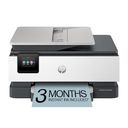
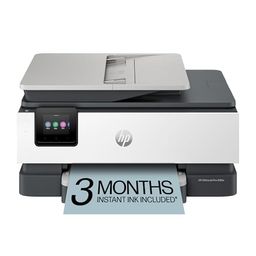
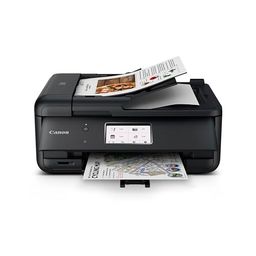


The order above is not editorial opinion, and it is not paid placement. It comes from what shoppers across our network actually do - which home printers for mac they compare, and which they ultimately buy. We re-rank as new data comes in, so the long-term favorites have to keep earning their spot against new entrants. The full method, including how we make money.
Home Printers for Mac Buyer's Guide
Buying a home printer for a Mac is less about finding a printer that can print and more about finding one that stays visible to macOS, wakes from sleep, and exposes the features you need through AirPrint or current Mac software. The sharpest tradeoff is convenience versus control: driverless printing is simple, but photo settings, scanning, duplexing, and network stability can vary a lot by model.
Quality
Print quality determines how sharp your text looks, how clear fine details appear, and how accurately colors reproduce in photos, graphics, and presentations. You’ll want to look for crisp lettering, smooth gradients, consistent color, and minimal banding or smudging, while remembering that results can vary by paper type, ink or toner, and print settings.
For a Mac home setup, judge quality by the output mode you will actually use through macOS: AirPrint-only printing can be wonderfully simple, but some models expose fewer controls for borderless photos, specialty paper, color matching, duplexing, or high-resolution photo modes than their full driver/app does. Choose a mono laser if your priority is crisp text, tax forms, school packets, and work documents; choose a color inkjet or tank model only if you need photos, graphics, or mixed-color documents, and verify photo-paper support, borderless sizes, and scanner compatibility with macOS Image Capture if scanning matters. Owner feedback supports this split: buyers praise clean text, strong color, photo-friendly output on better paper, and sharp black-and-white laser documents, while all-in-one models are often appreciated when they combine good everyday output with simple maintenance.
Speed
Print speed matters if you often produce long documents, multiple copies, or last-minute pages, because a slow printer can turn small tasks into bottlenecks. Look beyond the headline pages-per-minute rating and consider how quickly the first page comes out, whether speed drops for color or duplex printing, and how well the printer handles larger files without long processing delays.
For Mac users, look past headline pages-per-minute and check first-page-out time from sleep, AirPrint wake behavior, duplex speed, and how quickly large PDFs from Preview or browser print dialogs actually start. If you print long reports, forms, or shipping batches, a laser or dedicated label printer is usually safer than a compact inkjet; if you mostly print occasional family pages or photos, slower output may be acceptable. Owner sentiment lines up with that: compact laser-style machines are praised for fast everyday documents, and label printers can be dependable once aligned, but several owners report slow output, edge-cropped mobile photo jobs, uneven performance, and paper jams when pushing beyond basic occasional printing.
Reliability
A reliable printer saves you time and frustration by completing jobs without frequent paper jams, error messages, dropped connections, or half-printed pages. Look for signs that it handles your typical workload and paper types consistently, and watch out for models with complaints about misfeeds, stalled print queues, or needing frequent resets.
For this niche, reliability means the printer keeps working after macOS updates, wakes cleanly from sleep, scans without a broken vendor utility, and does not depend on a fragile cloud app just to print a basic page. Favor models with driverless AirPrint support, current macOS compatibility, firmware updates, a realistic duty cycle, and a fallback connection such as USB or Ethernet; be cautious with very compact all-in-ones if you expect heavy daily use, because small paper paths and light-duty parts can become jam-prone. Owner feedback is notably mixed here: some printers run smoothly for regular label or home-office work, but others are described as inconsistent, difficult after setup, slow to start jobs, dependent on software behavior, or not especially sturdy over time.
Connectivity
Connectivity determines how easily you can print from the devices you actually use, whether that’s a computer, phone, tablet, or shared office network. Look for reliable Wi-Fi, useful wired options if you need stability, and straightforward mobile or app setup; watch out for printers that are finicky to pair, drop off the network, or require awkward workarounds for everyday printing.
Connectivity is the Mac buyer’s make-or-break issue: confirm true AirPrint/Bonjour support, stable 2.4 GHz Wi-Fi compatibility, and whether the printer works reliably with mesh routers, router reboots, and sleep/wake cycles. For a home office, Ethernet or USB fallback is worth prioritizing; for a portable or label setup, Bluetooth can be convenient, but avoid Bluetooth-only designs if multiple Macs or family devices need shared access. Owner reports strongly reinforce this caution, with repeated complaints about Wi-Fi drops, printers going to sleep and disappearing, driver or device-association problems, reconnecting after router/printer reboots, and needing resets, cables, or support help before basic printing works.
Setup
Setup matters because a printer that is hard to install can turn a simple purchase into driver conflicts, connectivity issues, or repeated troubleshooting before you ever print a page. Look for clear first-time instructions, reliable Wi-Fi or wired connection options, and driver support for the devices you use. Watch out for printers that require complicated account creation, unclear app-based setup, or limited compatibility with your computer or mobile devices.
For a Mac household, the smoothest setup is usually: join the printer to Wi-Fi, open macOS Printers & Scanners, add it as an AirPrint printer, then confirm scanning in Image Capture or the built-in scan panel before you throw away packaging. Check in advance that the model supports your macOS version and Apple Silicon Macs, that setup does not require a Windows-only utility, and that any mobile app or account requirement is optional rather than mandatory for normal printing. Owner sentiment is generally encouraging on setup: many buyers describe guided instructions, quick unboxing-to-first-print experiences, simple app-assisted pairing, and especially fast Mac or AirPrint installs, though setup ease should still be weighed against the connectivity risks above.
Value
Value matters because the cheapest printer can become expensive if ink, toner, maintenance, or paper handling costs add up quickly. Look for a printer whose performance matches what you actually print—documents, photos, or high-volume jobs—and watch for models that seem affordable upfront but have costly consumables or features you will not use.
For Mac shoppers, value is not just the printer cost—it is the cost of keeping your exact workflow painless: ink that will not dry out during occasional use, toner that suits frequent black-and-white printing, tank refills that make sense for high-volume color, or thermal labels if shipping is the main task. Do not overbuy a color all-in-one if you only need monochrome documents, and do not buy a cheap cartridge inkjet for heavy school or home-office printing without checking refill yield, duplexing, ADF/scanner needs, and whether subscriptions or proprietary apps are avoidable. Owner feedback supports these tradeoffs: laser models are valued for economical black-and-white output, refillable tanks for stretching ink much farther, and thermal designs for no-ink label volume, while tank and office all-in-one value becomes mixed when reliability, build quality, or software hassle undermines the savings.
1,000,000+ shoppers use Buyer's Guide every week to find the best products and services online.

Helping millions of users make smarter purchases online.