







We also considered 10 others:




Our Top Choice
Compare Features


The order above is not editorial opinion, and it is not paid placement. It comes from what shoppers across our network actually do - which gaming pcs under $800 they compare, and which they ultimately buy. We re-rank as new data comes in, so the long-term favorites have to keep earning their spot against new entrants. The full method, including how we make money.
Gaming PCs Under $800 Buyer's Guide
In this tier, the key tradeoff is between a machine that looks like a gaming PC and one that actually has the graphics hardware, cooling, and upgrade path to stay useful. The sharpest concerns are avoiding underpowered “gaming” labels, checking whether older parts still match the games you play, and making sure the power, airflow, and ports will not box you in later.
Performance
Performance determines how quickly your desktop feels in daily use and whether it has enough power for gaming, streaming, creative work, and multitasking without stutter or long waits. Look for a balanced CPU, graphics card, memory, and fast storage that match what you actually do, and watch for systems that emphasize one impressive part while cutting corners on cooling, RAM, or upgrade room.
Prioritize a discrete graphics card and a true 1080p target before you get impressed by RGB, core counts, or “gaming” labels; at this tier, older GPUs can still be fine for esports and mainstream games, but weak integrated graphics or very old low-end cards can turn the PC into more of a school/work machine than a gaming rig. Look for 16GB of memory, preferably dual-channel, an SSD large enough for several modern games, and clear evidence that the system can sustain performance under load rather than only looking strong on paper. Owner feedback supports this split: buyers often report smooth everyday use and playable 1080p gaming in popular competitive and survival-style games, while the happiest budget-desktop owners are those who understand that older graphics hardware is useful but not top-tier modern gaming hardware.
Value
You want a desktop that feels worth what you pay, not just one with impressive specs on paper. Look for a balanced mix of processor performance, memory, storage, upgrade options, build quality, and included essentials, and watch out for systems that cut corners in areas like cooling, expandability, or bundled peripherals to hit an attractive price.
Judge value by the gaming parts you cannot cheaply fix later: GPU class, power supply headroom, motherboard expandability, memory configuration, and storage slots matter more than flashy lighting or bundled peripherals. A good buy in this niche should either be a capable starter gaming tower with an upgrade path or a compact everyday PC whose integrated graphics are clearly enough for your specific games; avoid paying “gaming PC” money for a machine that is mostly a basic office replacement. Owner sentiment lines up with that: shoppers repeatedly praise the price-to-capability balance, especially for first gaming PCs, everyday use, and buyers who knowingly accept older-but-still-useful parts.
Reliability
A reliable desktop PC should run consistently under your everyday workload without frequent crashes, overheating, or premature part failures. Look for solid build quality, good cooling, dependable power delivery, and components that are easy to service or upgrade, and be wary of systems that cut corners on case construction, airflow, or generic internal parts.
Check reliability risks that are common in low-cost prebuilts: unknown power supplies, cramped thermals, proprietary parts, loose shipping connections, weak front-panel ports, and bargain storage drives can cause crashes, lag, port failures, or early component issues months later. Favor systems with standard replaceable parts, visible airflow, accessible memory/storage, clear warranty handling, and enough cooling for the GPU rather than just a polished case. Owners often like quiet, stable operation and clean presentation at first, but the negative reports specifically warn that some units develop repeated update, lag, port, or early-failure problems after purchase, so long-term dependability deserves extra scrutiny.
Setup
A desktop PC that’s easy to set up lets you get from the box to a usable workspace with less frustration, especially if you’re buying for a beginner or someone who doesn’t want to troubleshoot hardware and software right away. Look for clear instructions, well-labeled ports, included essentials when needed, and a simple first-run setup process; watch out for systems that require extra adapters, manual driver installs, or confusing account and security prompts before you can start using them comfortably.
For a first gaming PC, make setup checks part of the buying decision: confirm the operating system is preinstalled and activated, the Wi-Fi/Bluetooth hardware is included if you need it, the monitor plugs into the graphics card rather than the motherboard, and the PC has the right display outputs for your monitor. On arrival, plan to reseat cables if needed, update GPU drivers, verify storage capacity, check temperatures, and run a short game or benchmark while you are still within the return window. Owner feedback is encouraging here, with many buyers describing quick plug-in-and-start setup, easy first boot, and beginner-friendly onboarding for teenagers, families, and first-time PC users.
Design
Because a desktop PC often sits in plain view, its appearance can affect how well it fits into your workspace, gaming setup, or home office. Look for a design that matches your taste and room layout while still supporting practical needs like good airflow, easy access to ports, and enough space for future upgrades. Be careful not to choose looks alone, since flashy lighting, unusual shapes, or compact cases can sometimes make the system louder, hotter, or harder to service.
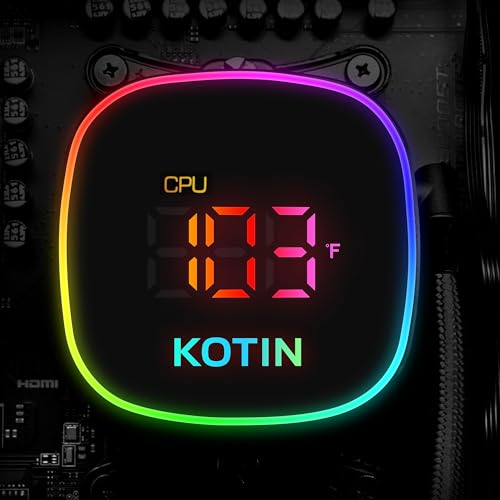
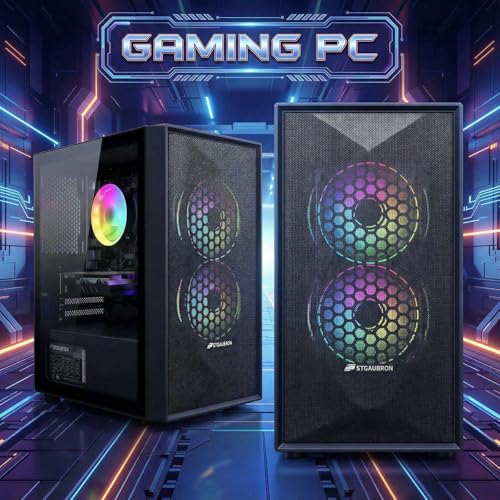
Treat the case as a cooling and upgrade platform, not just a gaming-looking shell: mesh intake, enough fan mounts, standard motherboard sizing, GPU clearance, and room for additional drives are more important than glass panels, lighting effects, or decorative liquid-cooling looks. Compact mini PCs are easy to place but usually limit GPU upgrades, while towers with standard parts are better if you expect to improve performance later; also be cautious with novelty screens or lighting controllers because they add failure points without improving frame rates. Owners do like the visual side—RGB lighting, fan-heavy cases, protected shipping, manageable size, and polished presentation are frequent positives—but those benefits should come after airflow and serviceability.
Noise
A desktop’s noise level affects how comfortable it is to use in a home office, bedroom, studio, or shared space, especially during long sessions. Look for quiet operation at idle and under load, with good airflow, larger or well-controlled fans, and a case design that does not amplify vibration. Be wary of compact or poorly cooled systems that may sound fine during light tasks but become distracting when gaming, rendering, or running intensive workloads.
Expect fan noise to rise during gaming, and check whether the system uses small high-RPM fans, a basic CPU cooler, or a cramped case, because these are common reasons budget gaming PCs sound fine at idle but get loud under load. If the PC will sit on a desk, look for larger case fans, open airflow, a sensible fan curve, and reviews that mention gaming noise rather than only office-use quietness. Owner sentiment is mostly favorable, with many buyers appreciating quiet operation in home offices and desk setups, but fan noise is also the main mixed area because some systems stay quiet at idle yet become noticeably louder during heavier use.
1,000,000+ shoppers use Buyer's Guide every week to find the best products and services online.

Helping millions of users make smarter purchases online.