




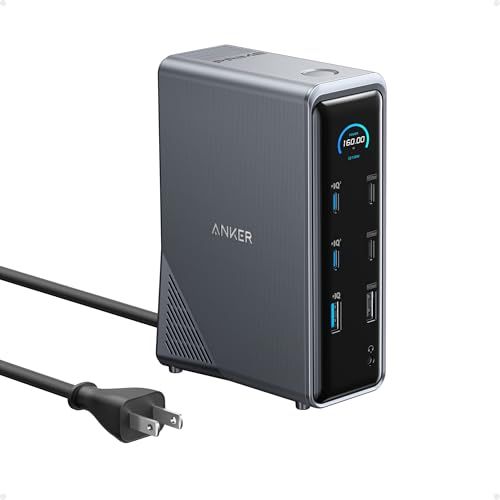
- Power Delivery: 160W PD
- Display Support: Dual monitors
- Connection Type: USB-C
- Compatibility: Windows, MacOS, ChromeOS
- Ports: 2x HDMI, 3x USB-C, 5x USB-A, ethernet





Anker Prime Docking Station
Overview and Everyday Experience

The Anker Prime Docking Station is aimed at people who want their laptop to behave more like a full desktop setup the moment they sit down at their desk. If you juggle external monitors, fast external storage, wired networking, and a mix of USB accessories, a docking station can remove daily friction: fewer cables to plug in, fewer ports to fight over, and a more stable workstation feel. In practice, the Prime Docking Station fits that role by emphasizing high-speed connectivity, clean desk management, and the ability to expand what a single laptop port can do.
What stands out most in day-to-day use is how a dock changes routine. Instead of plugging in power, HDMI or DisplayPort, Ethernet, keyboard, mouse, and a drive separately, you connect one cable and everything wakes up together. When it works well, it feels invisible in the best way. The Anker Prime Docking Station is designed to be that invisible bridge: a central hub that keeps frequently used peripherals plugged in permanently while your laptop stays portable. It also tends to appeal to users with bandwidth-heavy workflows, such as video editing off external SSDs, large file transfers, or simply wanting multiple high-resolution displays without juggling adapters.
Build quality and thermal behavior matter more than many buyers expect. Docks often sit behind monitors or under stands where airflow is mediocre. A good docking station should remain stable under sustained load, especially when multiple displays are connected and several high-speed ports are active. With the Prime Docking Station, the overall proposition is oriented around reliability and performance rather than being the cheapest way to get “more ports.” If your setup is a permanent or semi-permanent workstation, that focus is usually the right trade.
What to Consider Before Buying (and What Matters Most)
The most important factor to consider is compatibility with your laptop’s USB-C or Thunderbolt/USB4 capabilities. Many purchasing regrets come from assuming all USB-C ports are the same. Some laptops support full Thunderbolt or USB4 bandwidth and advanced display features; others have USB-C ports that charge and transfer data but have limited video support. Before buying, confirm what your laptop can output through its primary port. If your laptop only supports basic USB-C video modes, you may not get the monitor configurations you expect, even if the dock itself is capable.
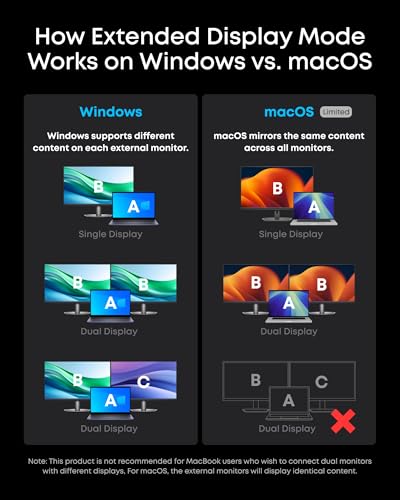
The next most important factor is your monitor plan: how many displays you want, at what resolution, and at what refresh rate. A docking station can be technically “multi-monitor,” but your experience depends on the combination of laptop GPU, operating system, and how the dock handles display output. If you want dual 4K monitors, ultrawide resolutions, or high refresh rates for smooth scrolling and gaming, you should prioritize display support as a top buying criterion. For Mac users in particular, it’s worth verifying whether your Mac model supports multiple external displays natively and whether any dock features rely on software-based solutions. For Windows users, the same applies, but compatibility tends to be simpler as long as the laptop supports the necessary standards.
Power delivery is another high-impact consideration. If you want a single-cable setup, the dock needs to supply enough power to charge your laptop under load. A lightweight ultrabook can be fine with modest charging, while mobile workstations and larger performance laptops may require significantly more. If the dock cannot provide enough power, your laptop may charge slowly, hold steady, or even drain during heavy use. That doesn’t necessarily make the product bad, but it can defeat the purpose of docking convenience. In most buying decisions, ensuring the dock’s charging output matches your laptop’s real-world needs is more important than having a couple of extra USB ports.
After compatibility, displays, and power, consider port selection and layout. Think about what you actually plug in weekly. If you frequently ingest photos or footage, front-facing card readers or accessible USB ports matter. If you run a wired keyboard, mouse dongle, printer, webcam, audio interface, or external SSD, you’ll want a balance of high-speed ports and “always connected” ports. Pay attention to whether you need USB-A for legacy accessories or whether you can live mostly on USB-C. It’s also worth considering Ethernet speed if you work with large network transfers or rely on stable video conferencing. Wired networking remains one of the strongest reasons to dock.
Cable management and physical footprint are the practical factors that become more important the longer you own a dock. A docking station can reduce cable clutter, but only if its ports are arranged in a way that suits your desk. If the dock sits visibly on your desktop, aesthetics and footprint matter; if it lives behind a monitor, you may prefer ports that are easy to route and cables that don’t bend awkwardly. Finally, consider whether you need the dock to travel. Many docking stations are designed primarily for a stationary setup. If you move between home and office, you may want to keep a second cable or charger at each location to preserve the “one plug” workflow.
Common Questions
Will the Anker Prime Docking Station work with my Mac or Windows laptop? It can work with both, but the experience depends on your laptop’s USB-C/Thunderbolt/USB4 features and how your operating system supports multiple displays. Check your laptop’s specifications for Thunderbolt or USB4 support and confirm the dock’s stated compatibility for multi-monitor use on your platform.
Can I run two external monitors from the dock? In many setups, yes, but the limiting factor is often the laptop rather than the dock. Some laptops support multiple external displays through a single port; others do not, and some Macs have model-specific restrictions. If dual monitors are essential, verify your specific laptop model’s external display support before purchasing.
Will it charge my laptop at full speed? It depends on the dock’s power delivery rating and your laptop’s power requirements. If your laptop normally uses a higher-wattage charger, confirm the dock can supply comparable wattage. If it supplies less, you may still be able to charge, but possibly not at full performance under heavy workloads.
Is a docking station better than a simple USB-C hub? A hub is often enough for occasional use or light expansion, but a docking station is typically better for a permanent desk setup where you want stability, wired Ethernet, multiple display outputs, higher bandwidth, and a consistent single-cable routine. If your workflow involves monitors and frequent reconnection, a dock generally offers a better long-term experience.
Do I need special cables? You usually want a high-quality USB-C or Thunderbolt cable that supports the bandwidth and charging levels you expect. Using an older or lower-spec cable can reduce display capabilities, limit speeds, or cause intermittent disconnects. If the dock includes a cable, start with that to minimize variables.
Overall, the Anker Prime Docking Station is best viewed as an investment in a smoother workstation rather than a mere port expander. The most important buying checkpoints are laptop compatibility, your target monitor configuration, and adequate power delivery; if those align with your needs, the dock can meaningfully simplify your desk and make your laptop feel like a fully equipped desktop setup.