
Best Laptop Docks Updated October 2026

Best Laptop Docks
2026 Buyer's GuideUpdated October 2026
Sort by:
1

10.0

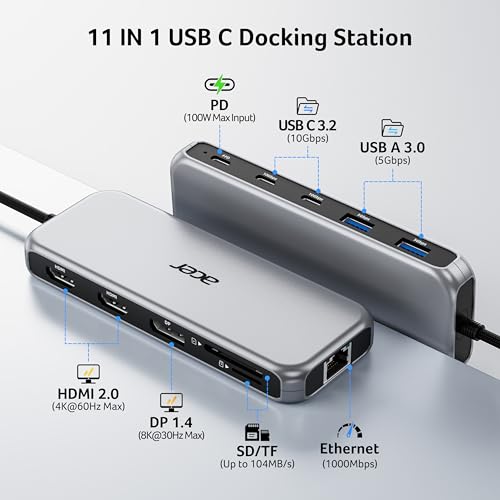
Acer Laptop Docking Station 3 Monitors, 11-in-1 USB C Docking Station
Power Delivery: 85W PD
Display Support: Triple monitors
Connection Type: USB-C
Compatibility: Windows, macOS, ChromeOS, Linux
Ports: 2x HDMI, 1x DisplayPort, 2x USB-C, 1x USB-C PD, 2x USB-A, ethernet, SD, MicroSD

10.0

1
Acer Laptop Docking Station 3 Monitors, 11-in-1 USB C Docking Station
Power Delivery: 85W PD
Display Support: Triple monitors
Connection Type: USB-C
Compatibility: Windows, macOS, ChromeOS, Linux
Ports: 2x HDMI, 1x DisplayPort, 2x USB-C, 1x USB-C PD, 2x USB-A, ethernet, SD, MicroSD
2

9.8

Anker Prime Docking Station, 14-in-1 Laptop Docking Station Dual Monitor
Power Delivery: 160W PD
Display Support: Dual monitors
Connection Type: USB-C
Compatibility: Windows, MacOS, ChromeOS
Ports: 2x HDMI, 3x USB-C, 5x USB-A, ethernet
Compare

9.8

2
Anker Prime Docking Station, 14-in-1 Laptop Docking Station Dual Monitor
Power Delivery: 160W PD
Display Support: Dual monitors
Connection Type: USB-C
Compatibility: Windows, MacOS, ChromeOS
Ports: 2x HDMI, 3x USB-C, 5x USB-A, ethernet
3

9.6

Acer USB-C Docking Station Dual Monitor, 9-in-1 Laptop Dock with 2 HDMI
Power Delivery: 100W PD
Display Support: Dual monitors
Connection Type: USB-C
Compatibility: Windows, macOS, ChromeOS, Linux, Android
Ports: 2x HDMI, 1x USB-C, 3x USB-A, ethernet, SD/MicroSD
Compare

9.6

3
Acer USB-C Docking Station Dual Monitor, 9-in-1 Laptop Dock with 2 HDMI
Power Delivery: 100W PD
Display Support: Dual monitors
Connection Type: USB-C
Compatibility: Windows, macOS, ChromeOS, Linux, Android
Ports: 2x HDMI, 1x USB-C, 3x USB-A, ethernet, SD/MicroSD
4

9.4

Umaniy Laptop Stand with Docking Station, 8 in 1 USB C Hub HDMI Portable Laptop Stand for Desk with USB Ports, Multiport USBC D...
Power Delivery: 100W PD
Display Support: Single monitor
Connection Type: USB-C
Compatibility: Windows, macOS, ChromeOS
Ports: 1x HDMI, 1x USB-C, 4x USB-A, SD/MicroSD
Compare

9.4

4
Umaniy Laptop Stand with Docking Station, 8 in 1 USB C Hub HDMI Portable Laptop Stand for Desk with USB Ports, Multiport USBC D...
Power Delivery: 100W PD
Display Support: Single monitor
Connection Type: USB-C
Compatibility: Windows, macOS, ChromeOS
Ports: 1x HDMI, 1x USB-C, 4x USB-A, SD/MicroSD
Compare
5

9.3

TobenONE 18 in 1 Laptop Docking Station 3 Monitors,Triple 4K HDMI,9 USB C/A
Power Delivery: 100W PD
Display Support: Triple monitors
Connection Type: USB-C
Compatibility: Windows, ChromeOS
Ports: 3x HDMI, 3x USB-C, 5x USB-A, ethernet, aux, SD/MicroSD
Compare

9.3

5
TobenONE 18 in 1 Laptop Docking Station 3 Monitors,Triple 4K HDMI,9 USB C/A
Power Delivery: 100W PD
Display Support: Triple monitors
Connection Type: USB-C
Compatibility: Windows, ChromeOS
Ports: 3x HDMI, 3x USB-C, 5x USB-A, ethernet, aux, SD/MicroSD
Compare
6

9.2

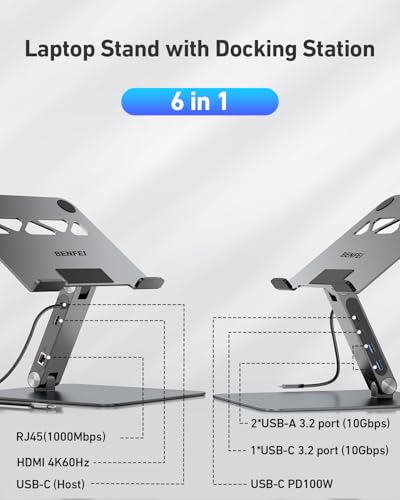
BENFEI Laptop Stand with USB C 6in1 Docking Station, HDMI 4K@60Hz,Gigabit Ethernet, 100W Power Delivery, 10Gbps 1*USB C 3.2 and...
Power Delivery: 100W PD
Display Support: Single monitor
Connection Type: USB-C
Compatibility: Windows, macOS, ChromeOS, Android
Ports: 1x HDMI, 1x USB-C, 2x USB-A, ethernet
Compare

9.2

6
BENFEI Laptop Stand with USB C 6in1 Docking Station, HDMI 4K@60Hz,Gigabit Ethernet, 100W Power Delivery, 10Gbps 1*USB C 3.2 and...
Power Delivery: 100W PD
Display Support: Single monitor
Connection Type: USB-C
Compatibility: Windows, macOS, ChromeOS, Android
Ports: 1x HDMI, 1x USB-C, 2x USB-A, ethernet
Compare
7

9.0

WAVLINK Displaylink Docking Station 3 Monitors for Mac(M1-M5, Neo), Windows
Power Delivery: 100W PD, 130W power adapter
Display Support: Triple monitors
Connection Type: USB-C/Thunderbolt
Compatibility: Windows, macOS, ChromeOS
Ports: 3x HDMI, 2x DisplayPort, 2x USB-C, 4x USB-A, ethernet, aux
Compare

9.0

7
WAVLINK Displaylink Docking Station 3 Monitors for Mac(M1-M5, Neo), Windows
Power Delivery: 100W PD, 130W power adapter
Display Support: Triple monitors
Connection Type: USB-C/Thunderbolt
Compatibility: Windows, macOS, ChromeOS
Ports: 3x HDMI, 2x DisplayPort, 2x USB-C, 4x USB-A, ethernet, aux
Compare
8

8.9

Anker USB C Hub, 5-in-1 USBC to HDMI Splitter with 4K Display
Power Delivery: 110W PD
Display Support: Single monitor
Connection Type: USB-C
Compatibility: Windows, MacOS, ChromeOS, Android
Ports: 1x HDMI, 1x USB-C, 2x USB-A
Compare

8.9

8
Anker USB C Hub, 5-in-1 USBC to HDMI Splitter with 4K Display
Power Delivery: 110W PD
Display Support: Single monitor
Connection Type: USB-C
Compatibility: Windows, MacOS, ChromeOS, Android
Ports: 1x HDMI, 1x USB-C, 2x USB-A
9

8.8

WAVLINK Laptop Docking Station,Triple Monitors,Dual DisplayPort,HDMI,85W PD
Power Delivery: 100W PD
Display Support: Triple monitors
Connection Type: USB-C
Compatibility: Windows, macOS, ChromeOS, Linux, Android, iPadOS
Ports: 1x HDMI, 2x DisplayPort, 4x USB, ethernet, SD/MicroSD
Compare

8.8

9
WAVLINK Laptop Docking Station,Triple Monitors,Dual DisplayPort,HDMI,85W PD
Power Delivery: 100W PD
Display Support: Triple monitors
Connection Type: USB-C
Compatibility: Windows, macOS, ChromeOS, Linux, Android, iPadOS
Ports: 1x HDMI, 2x DisplayPort, 4x USB, ethernet, SD/MicroSD
Compare
10

8.6

Anker Nano Laptop Docking Station, 13in1 Dock with Detachable 6in1 USBC Hub
Power Delivery: 100W PD
Display Support: Triple monitors
Connection Type: USB-C
Compatibility: Windows, macOS
Ports: 2x HDMI, 1x DisplayPort, 2x USB-C, 3x USB-A, ethernet, aux, SD/MicroSD
Compare

8.6

10
Anker Nano Laptop Docking Station, 13in1 Dock with Detachable 6in1 USBC Hub
Power Delivery: 100W PD
Display Support: Triple monitors
Connection Type: USB-C
Compatibility: Windows, macOS
Ports: 2x HDMI, 1x DisplayPort, 2x USB-C, 3x USB-A, ethernet, aux, SD/MicroSD

Our Top Choice

1

10.0

Acer Laptop Docking Station 3 Monitors, 11-in-1 USB C Docking Station
Power Delivery: 85W PD
Display Support: Triple monitors
Connection Type: USB-C
Compatibility: Windows, macOS, ChromeOS, Linux
Ports: 2x HDMI, 1x DisplayPort, 2x USB-C, 1x USB-C PD, 2x USB-A, ethernet, SD, MicroSD

10.0

1
Acer Laptop Docking Station 3 Monitors, 11-in-1 USB C Docking Station
Power Delivery: 85W PD
Display Support: Triple monitors
Connection Type: USB-C
Compatibility: Windows, macOS, ChromeOS, Linux
Ports: 2x HDMI, 1x DisplayPort, 2x USB-C, 1x USB-C PD, 2x USB-A, ethernet, SD, MicroSD

Compare Features

Display Support
Best Laptop Dock
1. Acer 3-Monitor Laptop Docking Station
ACER Preview ACER Preview
ACER
at Amazon
Premium Pick
2. Anker Prime Docking Station
ANKER Preview ANKER Preview
ANKER
at Amazon
3. Acer USB-C 9-in-1 Docking Station
ACER Preview ACER Preview
ACER
at Amazon
4. Umaniy Laptop Stand with Docking Station, 8 in 1 USB C Hub HDMI Portable Laptop Stand for Desk with USB Ports, Multiport USBC D...
UMANIY Preview UMANIY Preview
UMANIY
at Amazon
5. TobenONE 18-in-1 Laptop Docking Station
TOBENONE Preview TOBENONE Preview
TOBENONE
at Amazon
6. BENFEI Laptop Stand with USB C 6in1 Docking Station, HDMI 4K@60Hz,Gigabit Ethernet, 100W Power Delivery, 10Gbps 1*USB C 3.2 and...
BENFEI Preview BENFEI Preview
BENFEI
at Amazon
7. WAVLINK Displaylink Docking Station 3 Monitors for Mac(M1-M5, Neo), Windows
WAVLINK Preview WAVLINK Preview
WAVLINK
at Amazon
Best Value
8. Anker 332 5-in-1 USB-C Hub
ANKER Preview ANKER Preview
ANKER
at Amazon
9. WAVLINK Laptop Docking Station
WAVLINK Preview WAVLINK Preview
WAVLINK
at Amazon
10. Anker Nano Laptop Docking Station with Detachable Hub
ANKER Preview ANKER Preview
ANKER
at Amazon
Deal
-17% -37% -21% — -18% — — — — —
Deal -17% -37% -21% — -18% — — — — —
Power Delivery
85W PD 160W PD 100W PD 100W PD 100W PD 100W PD 100W PD, 130W power adapter 110W PD 100W PD 100W PD
Power Delivery
85W PD 160W PD 100W PD 100W PD 100W PD 100W PD 100W PD, 130W power adapter 110W PD 100W PD 100W PD
Display Support
Triple monitors Dual monitors Dual monitors Single monitor Triple monitors Single monitor Triple monitors Single monitor Triple monitors Triple monitors
Display Support
Triple monitors Dual monitors Dual monitors Single monitor Triple monitors Single monitor Triple monitors Single monitor Triple monitors Triple monitors
Connection Type
USB-C USB-C USB-C USB-C USB-C USB-C USB-C/Thunderbolt USB-C USB-C USB-C
Connection Type
USB-C USB-C USB-C USB-C USB-C USB-C USB-C/Thunderbolt USB-C USB-C USB-C
Compatibility
Windows, macOS, ChromeOS, Linux Windows, MacOS, ChromeOS Windows, macOS, ChromeOS, Linux, Android Windows, macOS, ChromeOS Windows, ChromeOS Windows, macOS, ChromeOS, Android Windows, macOS, ChromeOS Windows, MacOS, ChromeOS, Android Windows, macOS, ChromeOS, Linux, Android, iPadOS Windows, macOS
Compatibility
Windows, macOS, ChromeOS, Linux Windows, MacOS, ChromeOS Windows, macOS, ChromeOS, Linux, Android Windows, macOS, ChromeOS Windows, ChromeOS Windows, macOS, ChromeOS, Android Windows, macOS, ChromeOS Windows, MacOS, ChromeOS, Android Windows, macOS, ChromeOS, Linux, Android, iPadOS Windows, macOS
Ports
2x HDMI, 1x DisplayPort, 2x USB-C, 1x USB-C PD, 2x USB-A, ethernet, SD, MicroSD 2x HDMI, 3x USB-C, 5x USB-A, ethernet 2x HDMI, 1x USB-C, 3x USB-A, ethernet, SD/MicroSD 1x HDMI, 1x USB-C, 4x USB-A, SD/MicroSD 3x HDMI, 3x USB-C, 5x USB-A, ethernet, aux, SD/MicroSD 1x HDMI, 1x USB-C, 2x USB-A, ethernet 3x HDMI, 2x DisplayPort, 2x USB-C, 4x USB-A, ethernet, aux 1x HDMI, 1x USB-C, 2x USB-A 1x HDMI, 2x DisplayPort, 4x USB, ethernet, SD/MicroSD 2x HDMI, 1x DisplayPort, 2x USB-C, 3x USB-A, ethernet, aux, SD/MicroSD
Ports
2x HDMI, 1x DisplayPort, 2x USB-C, 1x USB-C PD, 2x USB-A, ethernet, SD, MicroSD 2x HDMI, 3x USB-C, 5x USB-A, ethernet 2x HDMI, 1x USB-C, 3x USB-A, ethernet, SD/MicroSD 1x HDMI, 1x USB-C, 4x USB-A, SD/MicroSD 3x HDMI, 3x USB-C, 5x USB-A, ethernet, aux, SD/MicroSD 1x HDMI, 1x USB-C, 2x USB-A, ethernet 3x HDMI, 2x DisplayPort, 2x USB-C, 4x USB-A, ethernet, aux 1x HDMI, 1x USB-C, 2x USB-A 1x HDMI, 2x DisplayPort, 4x USB, ethernet, SD/MicroSD 2x HDMI, 1x DisplayPort, 2x USB-C, 3x USB-A, ethernet, aux, SD/MicroSD
How we rank

The order above is not editorial opinion, and it is not paid placement. It comes from what shoppers across our network actually do - which laptop docks they compare, and which they ultimately buy. We re-rank as new data comes in, so the long-term favorites have to keep earning their spot against new entrants. The full method, including how we make money.

Laptop Docks Buyer's Guide

Laptop docks promise a one-cable desk, but the real tradeoff is between convenience and the exact limits of your laptop’s USB-C, Thunderbolt, USB4, or proprietary docking support. The sharpest checks are display compatibility—especially dual monitors, 4K refresh rates, and Mac limitations—and whether the dock can deliver enough power without heat-related dropouts during a full workday.

Build

A docking station should feel solid because it often supports multiple cables, power delivery, and daily plugging and unplugging. Look for sturdy construction, secure ports that don’t wiggle, good heat management, and a casing that resists flexing or sliding around your desk. Be cautious of docks that feel lightweight, arrive in poor condition, or show loose connections, as those can signal weaker durability over time.

For a laptop dock, prioritize a chassis that can handle constant cable tension, heat, and daily plug-unplug cycles: look for a firm host cable or replaceable upstream cable, ports that do not flex when devices are inserted, enough weight or grip to stay put, and ventilation if you will run monitors, Ethernet, storage, and charging at once. Avoid ultra-light hubs for permanent desks if heavy HDMI, DisplayPort, Ethernet, and power cables will tug on them; a compact dock is useful, but only if it will not slide around or stress your laptop’s USB-C port. Owner feedback supports this: buyers often like compact docks that feel sturdy, reduce desk clutter, and create a cleaner one-cable setup, while fuller desktop docks are valued when they run quietly and handle accessories without fuss.

Connectivity

Connectivity determines whether your docking station can reliably link your laptop to the monitors, storage, network, and peripherals you use every day. Look for the right mix of ports and standards for your setup—such as Thunderbolt or USB-C support, enough display outputs, Ethernet, and USB ports—and watch for limits like shared bandwidth, adapter requirements, or laptop compatibility that can reduce performance.

Match the dock to your laptop’s actual connection standard before buying: a USB-C port must support DisplayPort Alt Mode for direct video, Thunderbolt or USB4 may be needed for higher-bandwidth multi-display setups, and some dual-monitor configurations require MST or DisplayLink drivers. Mac shoppers should be especially careful, because many base-model laptops do not natively support multiple external displays through a basic USB-C dock; Windows laptops can also vary by port, so check the specific port icon and laptop spec sheet. Owner sentiment is encouraging when compatibility lines up: many users report plug-and-play setup, quick recognition of monitors and accessories, and smoother daily desk use with one cable for display, Ethernet, power, and peripherals.

Ports

Ports determine how many devices you can connect at once and whether the dock actually matches your workflow, from monitors and storage drives to keyboards, card readers, and Ethernet. Look for the right mix of port types and enough capacity for your current setup plus a little room to grow, and pay attention to placement so frequently used USB ports are easy to reach. Watch out for docks with many ports that duplicate types you do not need while leaving out essentials like display outputs, fast USB connections, or network access.

Choose ports based on the exact devices that must stay connected at the same time, not just the total port count: confirm the number and type of video outputs, USB-A ports for receivers and printers, USB-C data ports versus charge-only ports, Gigabit Ethernet, audio, and SD or microSD card slots if you transfer media. Check video specs carefully—HDMI or DisplayPort presence alone does not guarantee 4K at 60 Hz, ultrawide support, HDR, or two independent displays—and make sure USB storage ports have the speed you need instead of older low-speed data lanes. Owner feedback backs the importance of broad, practical port mixes, with buyers valuing docks that cover HDMI/DisplayPort, USB-C, USB-A, Ethernet, audio, and card-reader needs without constant cord swapping.

Usability

A docking station should make your workspace simpler, not add friction every time you sit down. Look for straightforward setup, reliable plug-and-play behavior, clear port placement, and enough flexibility to connect your usual monitor, power, storage, and accessories without constant cable swapping. Watch out for docks that require fussy drivers, unclear compatibility, or awkward layouts that make daily use less convenient.

For daily laptop docking, look for true one-cable workflow details: enough power delivery for your laptop, a host cable long enough to place the dock where you want it, ports arranged so bulky adapters do not block each other, and a layout that keeps frequently used USB or SD slots reachable. If you share the dock across laptops, confirm it does not require repeated driver installs, display rearrangement, or separate charging to work reliably; if you travel, a smaller hub may be easier than a powered desk dock but may give up charging headroom and display bandwidth. Owners commonly praise docks that simplify swapping laptops, reduce repeated plugging and unplugging, and combine monitor, USB, Ethernet, and card-reader functions in a portable or tidy desktop setup.

Reliability

You want a docking station that stays connected through long work sessions without dropping monitors, disconnecting peripherals, or needing frequent resets. Look for signs of stable operation under full load, effective heat management, and low noise if it uses active cooling; watch out for reports of intermittent failures, overheating, buzzing, or ports that become unreliable over time.

Reliability depends heavily on load: if the dock will run multiple monitors, Ethernet, USB storage, webcams, and charging for hours, favor models with adequate power input, thermal design, firmware support, and a return window long enough to test your full setup. Watch for early warning signs such as monitor flicker, display dropouts after warming up, intermittent Ethernet, USB drives disconnecting, or the laptop failing to charge at its required wattage; these are more important than whether the dock works for a few minutes out of the box. Owner reports mirror this split: many setups run smoothly, even with several ports in use, but negative experiences often involve heat, worsening monitor dropouts, connection instability, Mac display quirks, Ethernet issues, or needing a separate power adapter for full charging.

Value

A docking station can get expensive quickly, so you want to judge value by the ports, power delivery, display support, and build quality you’ll actually use—not just by a long spec list. Watch out for cheap docks that require compromises like unreliable connections, limited monitor support, weak charging, or extra adapters, since those can erase the savings.

The best value is the dock that replaces the exact adapters you would otherwise buy while preserving the performance you need: paying for extra display bandwidth, power delivery, Ethernet, or card readers makes sense only if your laptop can use them. Do not judge value by port count alone; a cheaper dock that cannot drive your monitors at the right resolution, cannot charge your laptop, or drops connections under load will cost more in frustration than a simpler but compatible unit. Owner sentiment supports docks as strong values when they fit the desk: buyers appreciate affordable ways to add HDMI, USB, Ethernet, SD card access, and a cleaner office-style workstation at home or on the go.