


- Power Delivery: 100W PD
- Display Support: Triple monitors
- Connection Type: USB-C
- Compatibility: Windows, macOS
- Ports: 2x HDMI, 1x DisplayPort, 2x USB-C, 3x USB-A, ethernet, aux, SD/MicroSD





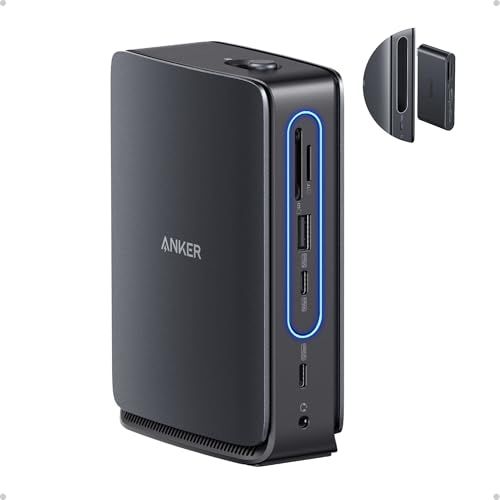
Anker Nano Laptop Docking Station with Detachable Hub
Review: Design, Setup, and Everyday Use

The Anker Nano Laptop Docking Station with Detachable Hub is designed for people who want a cleaner desk setup without giving up flexibility. Its defining feature is right in the name: the hub portion detaches from the main docking body, letting you choose between a more permanent “dock at the desk” setup and a lighter, take-it-with-you hub for travel or meeting rooms. In day-to-day use, that modular approach is genuinely practical. If your routine involves moving between a home office and another workspace, you can leave the bulk of your cable management in place while still having a compact option to throw in a bag.
Physically, the dock aims to reduce the clutter that comes from chaining dongles. With a single connection to your laptop, you can route peripherals, displays, and power through one central point. That convenience is the core promise of any docking station, but the Nano’s detachable hub makes it feel less like a stationary accessory and more like part of a flexible workflow. Setup is typically straightforward: plug the dock into power if it supports pass-through charging, connect your monitor and peripherals, then connect the host cable to your laptop. Once configured, reconnecting the laptop becomes a one-step ritual rather than a daily tangle of ports and cables.
In practice, performance and satisfaction tend to hinge on two things: how stable the connection is under load and whether the port selection matches your devices. For typical productivity use such as keyboard and mouse, webcam, external storage, and a monitor, the experience is usually seamless. Where people notice differences is when they push into higher-bandwidth tasks like high-refresh displays, multiple monitors, fast external SSDs, or frequent plugging and unplugging. A docking station that handles those edge cases without random disconnects, display flicker, or power negotiation hiccups is the kind you keep long-term, and Anker’s general reputation in accessories suggests an emphasis on reliability. Still, the realities of USB-C, Thunderbolt, and display standards mean that “it works” can depend as much on your laptop’s capabilities as on the dock itself.
What to Consider Before Buying (and What Matters Most)
The most important factor is compatibility with your laptop’s USB-C port. Not all USB-C ports are equal, and the label on the connector doesn’t tell the full story. Your laptop might support simple USB data but not support video output, or it might support DisplayPort Alt Mode, or it might be Thunderbolt/USB4 capable. This matters because external monitor support often relies on DisplayPort Alt Mode or Thunderbolt/USB4. If you want to run one or more monitors, confirm your laptop can actually output video over USB-C, and confirm what resolutions and refresh rates it can drive. A great dock cannot add video output capability to a laptop that doesn’t support it, and mismatched expectations here are the number one cause of returns.
Second in importance is display configuration and bandwidth. Consider how many monitors you want to connect, what resolution they are, and whether you care about refresh rate. A single 4K monitor for office work is one thing; dual monitors, ultrawides, or 4K at higher refresh rates can quickly strain the available bandwidth depending on the dock’s underlying tech and your laptop’s port. If you use color-sensitive work, also think about whether your workflow benefits from stable output and consistent behavior when waking from sleep. For many buyers, the “most important” comes down to whether the dock supports the exact monitor setup they already own.
Third is power delivery and charging behavior. Many people buy a docking station to reduce their desk to one cable, which only works if the dock can provide enough power to keep the laptop charged under load. A lightweight ultrabook may be fine with modest power delivery; a larger laptop running demanding workloads may need more. Check what wattage your laptop expects and whether the dock can provide it. Also consider whether you want the dock to replace your existing charger entirely or simply slow battery drain during heavy tasks. The difference between “charges while working” and “barely maintains charge” is a daily quality-of-life issue.
Port selection is next, and it’s more personal than it seems. Think about what you actually plug in. If you use wired Ethernet for stable video calls and low-latency work, make sure there’s an Ethernet port. If you frequently transfer photos or video, a full-size SD or microSD slot can be a major convenience. If you use multiple USB-A devices, count them now rather than later. Also consider whether you need front-facing ports for quick access or whether rear/side ports are fine. The detachable hub aspect can help here by giving you grab-and-go ports while keeping less frequently touched cables anchored at your desk.
Cable management and desk ergonomics are underrated considerations. A dock that sits neatly, doesn’t slide around, and keeps cables routed in a predictable direction can make your workspace feel calmer. Similarly, think about where the dock will live: under a monitor stand, next to a laptop stand, or behind a display. If the detachable hub will be used often, consider whether the detachment mechanism feels sturdy and convenient rather than fiddly. Over time, physical usability can matter as much as raw specifications.
Finally, consider platform quirks and software dependencies. Some docking solutions rely on special display technologies that may require drivers and behave differently on macOS versus Windows. If you are a Mac user, pay special attention to external display support limitations that can exist on certain Apple silicon models, independent of the dock. If you are a Windows user, verify whether you need driver installation for your preferred monitor setup. The most important takeaway is to match the dock not just to your devices, but to your operating system and habits.
Common Questions
Does the detachable hub mean I can leave cables plugged in at my desk and still take a smaller hub with me?
Yes. That is the main advantage of a docking station with a detachable hub: it can act as a more permanent desk dock while still giving you a portable set of ports when you unplug and leave.
Will this work with any USB-C laptop?
It will connect to many USB-C laptops for basic USB expansion, but full functionality depends on what your USB-C port supports. For external monitors, your laptop typically needs video output over USB-C such as DisplayPort Alt Mode or Thunderbolt/USB4. If your USB-C port is data-only, you may not get display output through the dock.
Can it replace my laptop charger?
It can if the dock supports power delivery at a wattage that meets your laptop’s needs. Check your laptop’s required charging wattage and compare it to the dock’s power delivery specification. If the dock provides less, it may still charge slowly or maintain battery during light work, but heavy workloads could drain the battery.
Is it good for gaming or high-refresh monitors?
It can be, but you should verify supported resolutions and refresh rates for your exact laptop and monitor combination. High refresh rates and higher resolutions require more bandwidth, and some docks prioritize compatibility and convenience over maximum display throughput.
Overall, the Anker Nano Laptop Docking Station with Detachable Hub stands out for its modular design and its ability to simplify a multi-device setup into a single, repeatable connection. The smartest buying approach is to prioritize laptop compatibility, monitor requirements, and charging wattage first, then choose based on the ports and physical workflow that fit your desk and travel routine.