

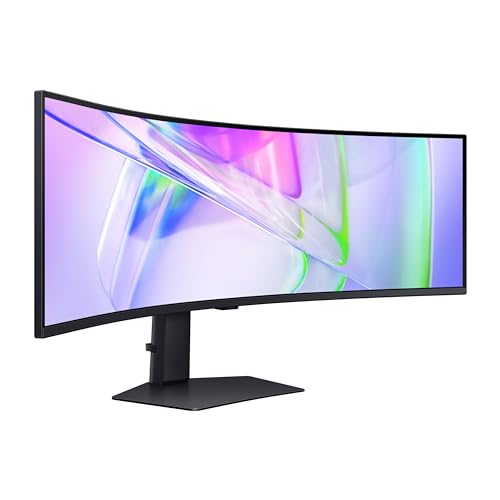


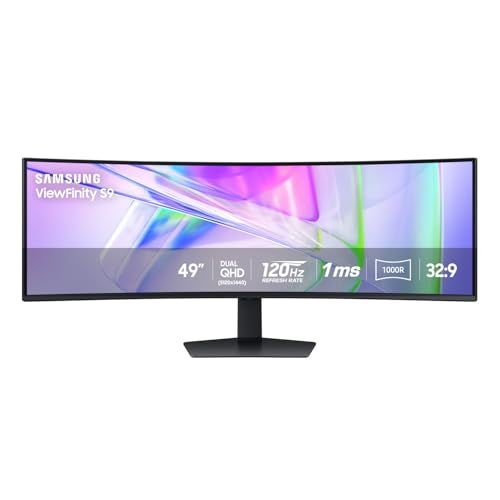
- Screen Size: 49"
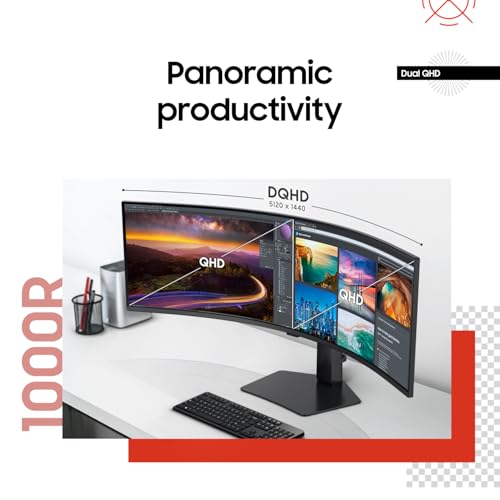
- Screen Resolution: DQHD (5120 x 1440)
- Screen Type: LCD
- Curved: Yes
- Aspect Ratio: 32:9
- Refresh Rate: 120Hz
- Brightness: 400 nits
- Response Time: 1ms GtG
- Panel Type: VA
- Ports: USB, USB-C, HDMI, DisplayPort





Samsung 49” Curved Ultrawide Monitor
Overview and Everyday Experience

The Samsung 49” Curved Ultrawide Monitor is designed for people who want the immersive feel of a dual-monitor setup without the seam in the middle. With its extra-wide 32:9 aspect ratio, it stretches your workspace across a single panel, giving you room to keep multiple windows open side by side. For office work, this can feel like an immediate productivity boost: a full-size spreadsheet can sit next to a document, a browser, and a chat app without constant window switching. For creative tasks, the width is especially useful for long timelines in video editing, wide canvases in design tools, and big audio project views where tracks and plugins compete for screen real estate.
The curved shape is not just for style. On a screen this wide, curvature helps keep the edges within a more comfortable viewing distance, reducing the sensation that you need to turn your head constantly to see what is happening at the far left or right. When you are seated at a normal desk distance, the curve can make the display feel more cohesive and less like you are watching two separate halves. That said, the curve experience is personal. Some users love how it “wraps” the image around their field of view, while others prefer flatter panels for precise visual alignment in certain design or technical tasks. In practice, most users adapt quickly, and the curve tends to feel more natural the wider the monitor becomes.
In entertainment and gaming, the 49” ultrawide format can be striking. When a game supports 32:9 properly, it can feel cinematic and noticeably more immersive, with peripheral vision filled by the world rather than the room around you. For streaming video and standard TV content, however, you should expect black bars on the sides because most content is produced in 16:9. In other words, this is a monitor that shines brightest when you are actively using the extra width, not when you are watching traditional video formats full screen.
One of the most underrated advantages is how this kind of monitor changes workflow habits. Instead of stacking windows or flipping between virtual desktops, you can keep things visible and reference material open at all times. If you frequently compare documents, monitor dashboards, code while reading documentation, or manage multiple remote sessions, the physical space becomes a real daily convenience. The trade-off is that it can encourage clutter; if you do not regularly organize windows, the vast canvas can become visually busy.
What to Consider Before Buying (and What Matters Most)
The first factor to consider is how you will use the width. A 49” ultrawide is at its best when you genuinely benefit from a wide, continuous desktop. If your typical day involves a single app in full screen, you may not see the value. If you routinely multitask or want to replace two monitors with one, the format becomes far more compelling. This is also where you should think about software compatibility. Many modern applications handle ultrawide resolutions well, but some games, older tools, or certain enterprise apps may not scale perfectly or may place toolbars in awkward positions. If a particular application is central to your work, it is worth checking user reports or trying a similar ultrawide setup before committing.
Screen resolution and pixel density matter more than many people expect. A 49” ultrawide typically aims to match the combined width of two standard monitors, but the sharpness depends on the exact resolution and your viewing distance. If you work with fine text all day, you will care about crispness, font rendering, and whether you need display scaling. A clearer, higher-resolution panel can reduce eye strain and make long sessions more comfortable, while a lower pixel density can make text feel less refined unless you sit a bit farther back.
Refresh rate and response time are the main performance considerations for gaming and fast motion. If competitive gaming is a priority, a higher refresh rate can make motion feel smoother and improve responsiveness, while a slower panel can show more blur in rapid scenes. For casual gaming and general productivity, these factors are less critical, but they still influence how “snappy” the display feels when scrolling and dragging windows. The most important point is to match the monitor to your usage: high refresh can be a deciding factor for gamers, while color accuracy and uniformity may be more important for creators.
Panel type and image characteristics should be weighed carefully. Contrast, viewing angles, and color reproduction vary between technologies, and each has its strengths. If you often work in darker rooms or enjoy deep blacks in games and movies, stronger contrast can be a big quality-of-life improvement. If you are doing color-sensitive work, you will want consistent color and the ability to calibrate. It is also smart to look into how the monitor handles brightness uniformity across such a wide surface. Large panels can sometimes show variations from center to edge, and the curve can make uniformity issues more noticeable depending on lighting and content.
Connectivity and features might be the difference between “nice” and “perfect” for your setup. Many buyers will want to know whether it supports USB-C, how many HDMI or DisplayPort inputs are available, and whether it offers picture-by-picture modes so you can plug in two devices and view them simultaneously. If you plan to connect a work laptop and a personal desktop, or a PC plus a console, input flexibility becomes central. For a clean desk, built-in USB hubs, KVM-style switching, or strong cable management can save daily hassle. Not every model includes all of these, so it is worth verifying the exact configuration rather than assuming.
Ergonomics and physical space are also crucial. A 49” monitor is wide, and the stand footprint can be substantial. You should measure your desk depth as well as width; sitting too close can make the edges feel far away, while sitting too far may reduce the benefit of the curve. Many users prefer mounting such a monitor on a sturdy arm, but that requires checking VESA compatibility and the weight rating of the mount. Additionally, consider height adjustment and tilt, especially if you will be using it for long work sessions.
Finally, think about your computer’s ability to drive the display. High resolutions and high refresh rates can be demanding, particularly in games. A powerful GPU may be necessary to take full advantage of the monitor’s capabilities. For productivity tasks, almost any modern system can output an ultrawide signal, but if you plan to push high refresh at high resolution, you will want to ensure your graphics card and ports support the bandwidth you need. Among all buying factors, the most important tend to be resolution and clarity for text-heavy work, refresh rate for gaming priorities, and connectivity if you are integrating multiple devices. If you choose the right balance among those three, the rest is refinement.
Common Questions
Will a 49” ultrawide really replace two monitors? Yes, for many people it does. You get the functional width of two displays in one continuous panel, which is excellent for multitasking and eliminates the bezel gap. The main difference is that you lose the ability to angle two separate monitors independently, and some people still prefer a second screen in portrait orientation for reading or coding.
Do all games and apps support the 32:9 aspect ratio? No, support varies. Many modern games offer native ultrawide options, but some will display black bars, stretch the image, or limit the field of view. Productivity apps generally behave well, but older software may not scale as gracefully. If a specific title or tool is essential, check compatibility reports before you buy.
Is the curve helpful or just a gimmick? On a display this wide, the curve is genuinely useful for comfort because it helps keep the edges at a similar distance from your eyes as the center. Whether it feels “better” depends on your seating position and personal preference, but most users find it more natural than a flat panel at this size.
What kind of desk setup works best? A deeper desk is ideal so you can sit at a comfortable distance and take in the full width without constant head turning. If your desk is shallow, a strong monitor arm can help position the screen correctly. It is also wise to plan cable routing because multiple inputs and peripherals can create clutter quickly.
Will my computer handle it? For basic office work, most modern PCs and laptops can drive an ultrawide resolution without trouble. For gaming at high resolution and high refresh rates, you may need a more capable graphics card. The key is to match your performance expectations to your hardware and ensure you have the right ports and cables.
Conclusion: The Samsung 49” Curved Ultrawide Monitor is a compelling choice for users who want an immersive, seamless wide-screen experience for productivity, creative work, or gaming. The best buying decision comes down to confirming that you will truly use the width, selecting a resolution and refresh rate that match your priorities, and ensuring your desk, connectivity needs, and computer hardware can support the setup comfortably. If those align, this type of monitor can feel like a genuine upgrade that changes how you work and play every day.