







We also considered 10 others:


Our Top Choice
Compare Features


The order above is not editorial opinion, and it is not paid placement. It comes from what shoppers across our network actually do - which 34-inch ultrawide monitors they compare, and which they ultimately buy. We re-rank as new data comes in, so the long-term favorites have to keep earning their spot against new entrants. The full method, including how we make money.
34-Inch Ultrawide Monitors Buyer's Guide
A 34-inch ultrawide is a sweet spot between a dual-monitor work setup and an immersive gaming display, but the tradeoff is that the screen’s width, curve, and 3440×1440-class resolution expose weak stands, bad ports, and underpowered graphics hardware quickly. The sharpest checks are whether your desk/GPU/cables can actually support the native resolution at the refresh rate you want, and whether the panel type fits your use: VA contrast, IPS clarity, or OLED speed and blacks with burn-in considerations.
Build
Build quality matters because your monitor is something you’ll adjust, plug into, and rely on every day, so weak construction can lead to wobble, loose ports, creaking plastics, or early failures. Look for a stable stand, solid hinge and height-adjustment mechanisms if included, well-fitted panels, dependable buttons or controls, and ports that feel secure when cables are connected. A monitor that feels sturdy and consistent out of the box is more likely to stay reliable over years of use.
For this category, prioritize a rigid stand with height adjustment, low wobble across a very wide panel, and standard VESA mounting if your desk is shallow or you plan to use an arm; a 34-inch ultrawide can feel much larger in practice than its diagonal suggests, and weak stands often force the screen too close. Also check return policy and pixel-defect handling, because defects are more noticeable across a wide productivity canvas. Owner feedback generally supports that many models feel better made than expected, with buyers often describing them as solid, smooth in everyday use, and satisfying for combined work and gaming setups.
Display
Your monitor’s display quality determines how sharp text looks, how accurate and vivid colors appear, and whether the screen stays clear in bright rooms or during fast motion. Look for a resolution and pixel density that suit your screen size, enough brightness for your workspace, good color coverage and accuracy if you edit photos or video, and low motion blur or ghosting if you game or watch fast-moving content. Also watch for uneven backlighting, poor viewing angles, and distracting artifacts that can make daily use more tiring.
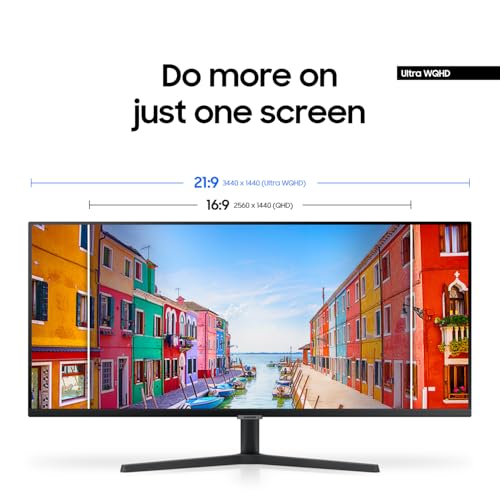
Look first for true UWQHD/3440×1440 resolution on a 34-inch panel, not a lower-resolution ultrawide, because text clarity and spreadsheet/code density depend on the roughly 110-PPI class sharpness. Choose panel type deliberately: OLED gives exceptional blacks and motion but needs burn-in care for static taskbars and productivity layouts; VA usually gives strong contrast but can smear in dark motion; IPS tends to be safer for text and color consistency but may have weaker blacks. Owners most often praise sharp WQHD-class visuals, vibrant colors, strong contrast, immersive curves, and, where applicable, OLED blacks that make older LCDs look washed out.
Performance
Performance matters because it affects how smooth motion looks, how quickly the display responds to your inputs, and whether the monitor feels comfortable for gaming, creative work, or everyday multitasking. Look for a refresh rate and response behavior that match how you’ll use it: faster specs help with games and fast-moving content, while stable, responsive performance is still important for work. Watch out for monitors that advertise high numbers but have poor motion handling, input lag, or trade-offs in image quality at their fastest settings.
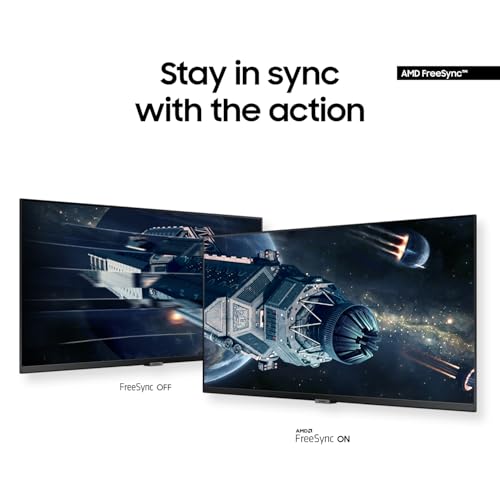
Match refresh rate to your actual hardware and ports: 3440×1440 at high refresh needs the right DisplayPort/HDMI bandwidth, a capable GPU, and often the included high-bandwidth cable or a certified replacement. Gamers should check adaptive-sync support, response-time behavior, VRR flicker reports, and whether the panel stays clean in dark scenes; productivity users should confirm stable operation with multiple inputs, PIP/PBP, and their operating system. Owner sentiment is strongest when monitors deliver smooth high-refresh gameplay, responsive motion, dependable macOS/Windows use, and enough width to keep multiple full-size windows open.
Value
You want a monitor that gives you the right mix of image quality, size, refresh rate, ergonomics, and connectivity for what you actually do, without paying for features you won’t use. Look for strong core performance at a fair price, and watch out for cheap models that cut corners on panel quality, adjustability, or ports, as well as expensive ones whose extras don’t improve your everyday experience.
Judge value by the complete ultrawide package, not just the diagonal: native UWQHD resolution, usable refresh rate, solid stand or VESA support, enough inputs, PIP/PBP or KVM-like workflow features, and credible warranty/return support matter more than headline size. Be cautious of bargain units that cut corners on port bandwidth, brightness, adjustability, or pixel policies, because those compromises are magnified on a single large primary monitor. Owners frequently frame the category as strong price-to-performance when the screen feels sharp, well made, smooth for gaming, and useful for both work and entertainment, especially when extras like multiple inputs and PIP/PBP are included.
Size
Screen size affects how much workspace you get, how comfortably you can view text and details, and how much room the monitor takes up on your desk. Look at the full footprint, including stand depth and width, not just the diagonal screen measurement, and consider weight if you’ll move it often, use a monitor arm, or need a portable setup. Bigger can feel more immersive, but it may be awkward in tight spaces or at close viewing distances.
Before buying, measure desk width and depth, not just available diagonal space: a 34-inch ultrawide is wide enough to replace two smaller screens for many people, but a deep stand or tight viewing distance can make the edges uncomfortable. For a curved model, match curve to use: aggressive curves can feel immersive for gaming and reduce edge distance, while gentler curves may be easier for design work and shared viewing; also remember that 21:9 video and some games may show black bars or limited support. Owners strongly like the spacious workspace for spreadsheets, programming, messaging, gaming, and multitasking, while some note the extra-wide format is less ideal for certain media and desk layouts.
Setup
You’ll feel a monitor’s setup quality before you ever judge the picture: a stable stand, straightforward assembly, flexible height/tilt adjustments, and clearly labeled ports can make daily use much easier. Look for simple on-screen controls, cable management, and compatibility with your desk, laptop, or mounting arm; watch out for bulky stands, awkward menus, or limited adjustment that can leave the screen uncomfortable to use.
Plan setup around native resolution and refresh from the start: use the correct DisplayPort/HDMI input, select 3440×1440 and the intended refresh rate in the OS/GPU panel, and verify color depth/HDR settings if available. If mounting, confirm VESA pattern, monitor weight, arm capacity, and cable reach; if using a laptop or dock, confirm it can output ultrawide resolution at the desired refresh, especially on USB-C hubs. Owners generally find setup straightforward, including mounting and multi-monitor integration, but their positive experiences often depend on configuring the resolution, refresh rate, and cable correctly.
1,000,000+ shoppers use Buyer's Guide every week to find the best products and services online.

Helping millions of users make smarter purchases online.