










We also considered 10 others:






Our Top Choice
Compare Features




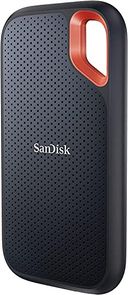
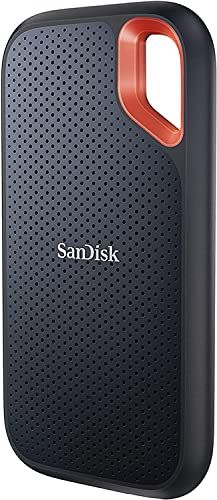


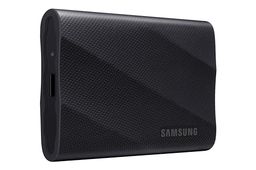


The order above is not editorial opinion, and it is not paid placement. It comes from what shoppers across our network actually do - which external ssds for mac they compare, and which they ultimately buy. We re-rank as new data comes in, so the long-term favorites have to keep earning their spot against new entrants. The full method, including how we make money.
External SSDs for Mac Buyer's Guide
For Mac users, the best external SSD is not just the fastest or smallest one—it has to match how macOS will use it: Time Machine backup, APFS project storage, cross-platform sharing, or high-bitrate media editing. The sharpest pitfalls are buying a drive whose advertised USB speed your Mac cannot actually use, or formatting it in a way that makes backups, permissions, or long-term reliability worse.
Reliability
Reliability matters because a hard drive’s real value is in keeping your data readable and available over years of use, not just offering enough capacity on day one. Look for signs of build quality such as an appropriate workload rating, warranty coverage, heat management, and whether the drive is designed for your use case, and be wary of using a basic desktop drive for constant backups, NAS use, or other always-on workloads.
Choose a drive that stays stable through long macOS writes, sleep/wake cycles, and Time Machine runs, not just one that feels fast in short transfers. For Mac backup duty, favor a dedicated SSD formatted APFS, use the included or a certified short USB-C cable, avoid flaky hubs for critical backups, and look for a sturdy enclosure with good heat control because thermal shutdowns and surprise disconnects can corrupt backups or project libraries. Owner feedback supports prioritizing dependable everyday builds: shoppers often describe portable SSDs as solid, confidence-inspiring backup drives for files, photos, projects, and media, with compact bodies that still feel sturdy enough for travel.
Capacity
Storage capacity determines how much you can keep on the drive, from documents and photos to large video files, backups, and game libraries. Choose enough storage for what you have now plus room to grow, and watch for the difference between advertised capacity and the slightly lower usable space your computer reports after formatting.
Size capacity around the Mac job: for Time Machine, aim for at least 2× the Mac’s internal storage, and more if you keep large photo, video, or music libraries; for active editing, leave headroom so the SSD is not constantly near full, where performance and wear can suffer. Remember that formatted capacity will appear lower than the box number, and separate backup, scratch, and transfer roles when possible rather than trusting one drive with every copy. Owner sentiment lines up with this: buyers consistently value roomy portable drives for backups, large file libraries, photos, videos, laptop offloads, and Time Machine use while still appreciating compact 1TB–2TB-class options that do not feel bulky.
Speed
Speed affects how quickly you can boot a system, open large files, run applications, and move data on or off the drive. Look for strong real-world transfer performance, not just headline specs, and remember that the drive’s connection type, your computer’s ports, and the kind of files you move can all limit actual speed.
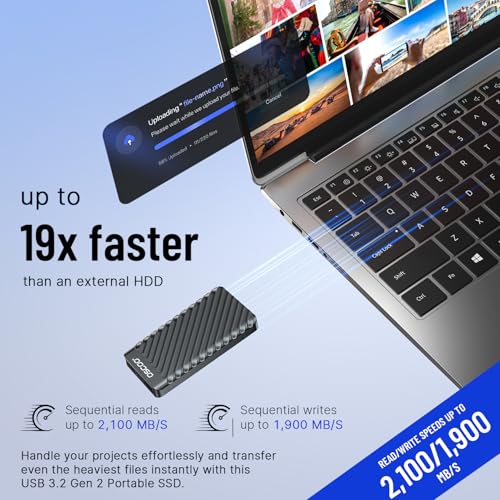
Match the SSD’s interface to your Mac before paying for advertised peak speed: many Macs top out around USB 10Gbps for ordinary USB-C SSDs, while USB 20Gbps Gen 2x2 drives often fall back to lower speeds on Macs; Thunderbolt-class storage only pays off if you truly need sustained high throughput for editing or boot/scratch workflows. For large ProRes, RAW photo batches, Lightroom libraries, or Final Cut projects, check sustained write performance and heat behavior, not just the headline read speed, because small SSDs can slow after their cache fills. Owner reports reinforce speed as a real strength when chosen well, with buyers praising fast transfers, smoother app or file work, quicker backups, and better handling of large photos, video clips, games, programs, and working files.
Size
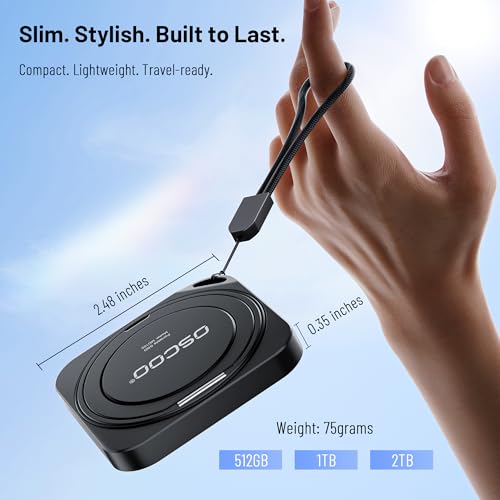
Size affects how easily you can carry a hard drive, fit it into your workspace, or tuck it into a laptop bag alongside other gear. If you travel often or work between locations, look for a compact, durable design that does not add bulk; if it will stay on a desk, make sure its footprint, cable layout, and ventilation needs fit your setup.
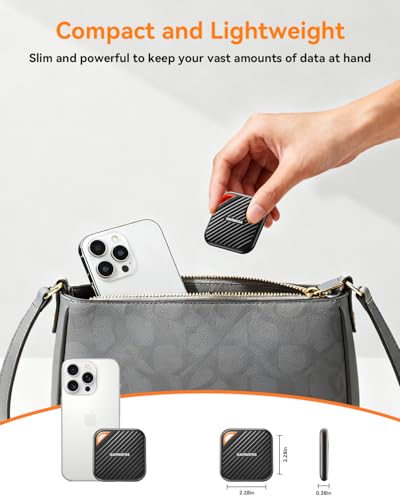
For MacBook travel, small is good only if the drive and cable do not create a fragile lever hanging off the USB-C port; favor a pocketable enclosure with a flexible cable, rounded edges, and enough surface area to shed heat during long backups or exports. If you work in the field, prioritize a rugged shell, secure cable fit, and easy labeling over the absolute tiniest thumb-drive shape, especially when the SSD may ride in a camera bag or be used on a cramped desk. Owner sentiment strongly supports portability as a buying priority: users like drives that are compact, lightweight, easy to pocket, simple to carry between school, work, travel, and desks, and still large enough in storage for file dumps and backups.
Value
Value matters because you want a hard drive that gives you dependable storage capacity and performance without paying for features you do not need. Look at the cost relative to capacity, reliability expectations, warranty coverage, and intended use, since the cheapest option can cost more in the long run if it is slow, noisy, or failure-prone. A good value drive should feel appropriately priced for how much data it holds, how often you will use it, and how much you trust it with your files.
The best value for a Mac buyer is the drive whose speed class, cable, format flexibility, and endurance match the Mac—not the one with the highest advertised spec. Do not overpay for a USB mode your Mac cannot use, but also be cautious with ultra-cheap drives that hide slow sustained writes, questionable controllers, fake capacity, weak warranties, or poor macOS compatibility; a good value drive should work without required vendor software and include the connection you need. Owner feedback supports this practical view of value: shoppers praise drives that deliver a strong storage-to-cost balance, simple plug-and-play use, useful capacity for photos, school or work files, content creation, backups, and everyday fast transfers.
Usability
You want a hard drive that’s easy to set up, mount, and start using without confusing formatting steps or compatibility surprises. Look for clear installation requirements, simple backup or file-management options, and a design that fits how you’ll use it day to day; watch out for drives that require extra adapters, software, or technical setup that could slow you down.
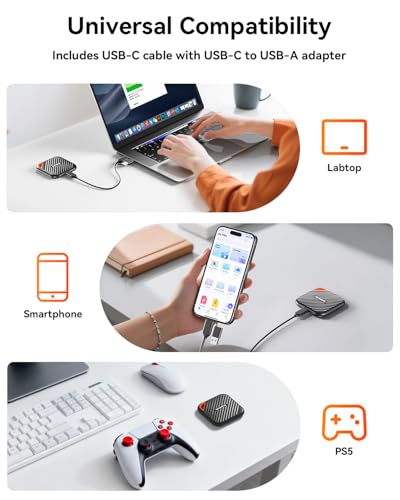
Plan the format before first use: choose APFS for Mac-only storage and Time Machine, APFS encrypted if you need privacy, and exFAT only when you must share with Windows, cameras, or other devices because it lacks the same macOS-native journaling behavior. Check that the drive mounts reliably on your Mac’s USB-C ports, includes any USB-A option you still need, does not require intrusive backup utilities, and can be safely ejected without disconnect warnings after sleep. Owner sentiment is positive but shows why this matters: many buyers find setup plug-and-play across Mac, Windows, USB-C, and USB-A situations, yet connectivity is not always universally consistent, so cable quality, port compatibility, and formatting choice should be verified early.
1,000,000+ shoppers use Buyer's Guide every week to find the best products and services online.

Helping millions of users make smarter purchases online.