Join the millions that have trusted BuyersGuide.org to help them make smarter buying decisions. Let our independent expert reviews and data-driven shopping recommendations help you find the one that's right for you.






















Our Top Choice
Why These Features Matter:
A dual-monitor KVM switch is one of those unglamorous desk purchases that can make you feel wildly competent twice a day: once when your setup works, and again when you remember what it used to be like (a hydra of cables, a keyboard that belonged to whichever laptop was closest, and a slow descent into switching-input-menu purgatory).
But dual-monitor KVMs are also uniquely good at ruining your mood in tiny ways: a one-second blackout every time you switch, a hot little box you didn’t plan shelf space for, a “helpful” USB hub that randomly drops your webcam mid-call, or a button you have to crawl under the desk to press like you’re rebooting a router in 2008.
Here’s what actually matters in daily life — not in a spec sheet.
1) The switching experience: the whole point, and also the part that can make you swear
Switching should feel like changing seats, not moving apartments. The best dual-monitor KVMs switch both displays plus your keyboard/mouse cleanly, with minimal blinking and no “Where did my cursor go?” panic. You want something that returns you to exactly where you were: same monitor arrangement, same USB devices, same calm.
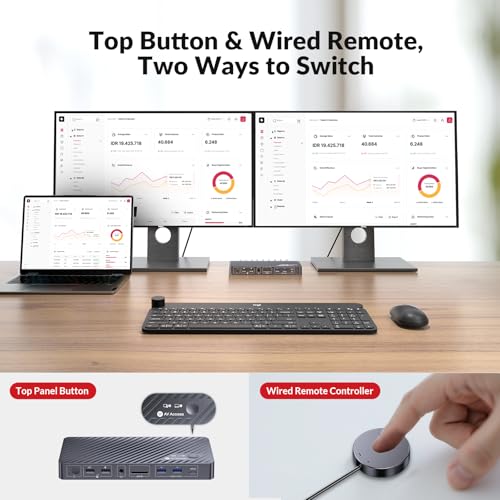
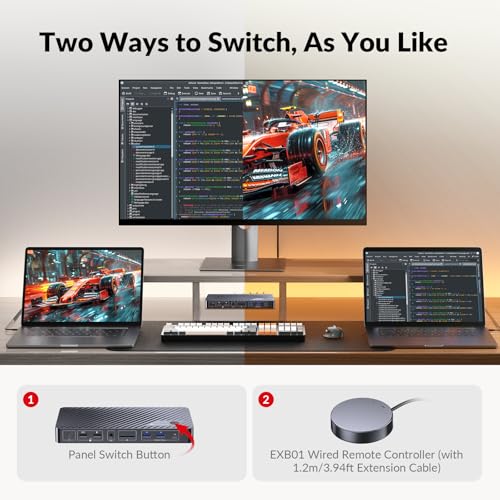
- Look for: A dedicated wired remote button or an easy-to-hit front button. Bonus points if it’s weighted or magnet-backed so it doesn’t skitter behind your monitor stand.
- Nice in real life: Keyboard hotkeys can be great — until you forget the combo mid-Zoom and start accidentally muting yourself or opening system menus.
- Texture detail: Cheap switches often feel “hollow” when you press the button — and that’s usually predictive. Better ones click with intention and don’t wobble across the desk.
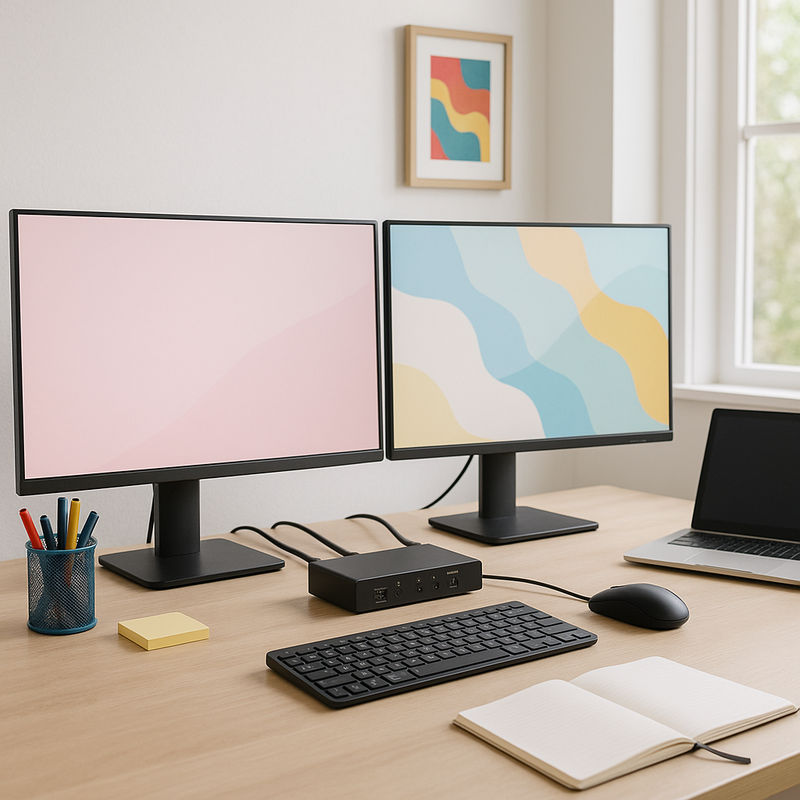
2) Video support that matches how you actually use your monitors
Dual-monitor KVMs get complicated fast because “dual monitor” can mean a lot of things: two 4K displays for design work, two 1440p screens for spreadsheets, or one monitor doing the heavy lifting while the other is basically a glorified Slack aquarium.
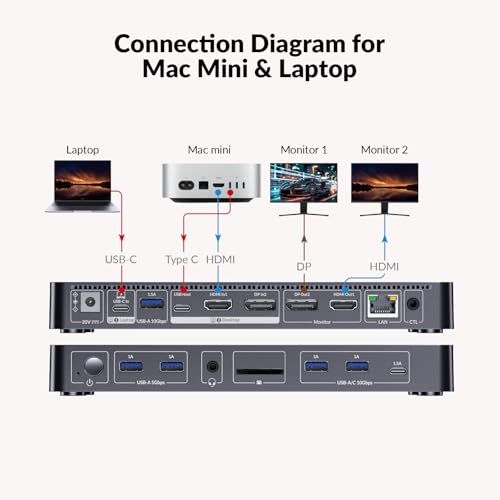
- Look for: The right connector type for your actual monitors (HDMI vs DisplayPort), and a KVM that can handle your preferred resolution/refresh without making the picture look slightly… seasick.
- Practical guidance: If you care about higher refresh rates (especially for gaming), don’t assume “supports 4K” means “supports 4K the way you want.” Many KVMs will do high resolution but at more modest refresh rates.
- Small reality: If you’re using a Mac, pay attention to how your machine behaves with dual external displays; sometimes the computer is the limiting factor, not the KVM. The KVM just gets blamed because it’s new.
3) USB behavior: the difference between “seamless” and “why is my webcam frozen again?”
A dual-monitor KVM isn’t just a video switch; it’s your desk’s social coordinator. If it mishandles USB, you’ll feel it immediately — usually when your mic stops working or your keyboard lags like it’s wading through syrup.
- Look for: USB ports that can handle more than just a mouse and keyboard if you plan to share a webcam, microphone, or audio interface between computers.
- Nice in real life: Some KVMs handle “always-on” USB devices better than others. If you’re constantly in calls, the stability of your webcam connection matters more than one extra port.
- Desk-life detail: Front-facing USB ports sound convenient until you realize you’re staring at a tangle of dongles all day. Rear ports look cleaner, but you’ll need longer cables and more patience.
4) The “where does this box live?” problem
Most KVMs are not pretty. They’re small black rectangles with the aesthetic ambition of a stapler. Which is fine — until you’re trying to keep your desk looking intentional instead of “IT closet.”
- Look for: A unit with a footprint that fits your reality: under-monitor shelf, wall-mountable, or at least slim enough to tuck behind something.
- Nice in real life: A separate remote button means the box can hide. It also means one more object to lose. (I recommend sticking it to the underside of your desk with a little removable tape if you’re the “clear surfaces” type.)
- Honest note: Some KVMs run warm. Not “house fire,” more “why is this corner of my desk mildly toasty?” If your space is tight or you stack devices, it can matter.
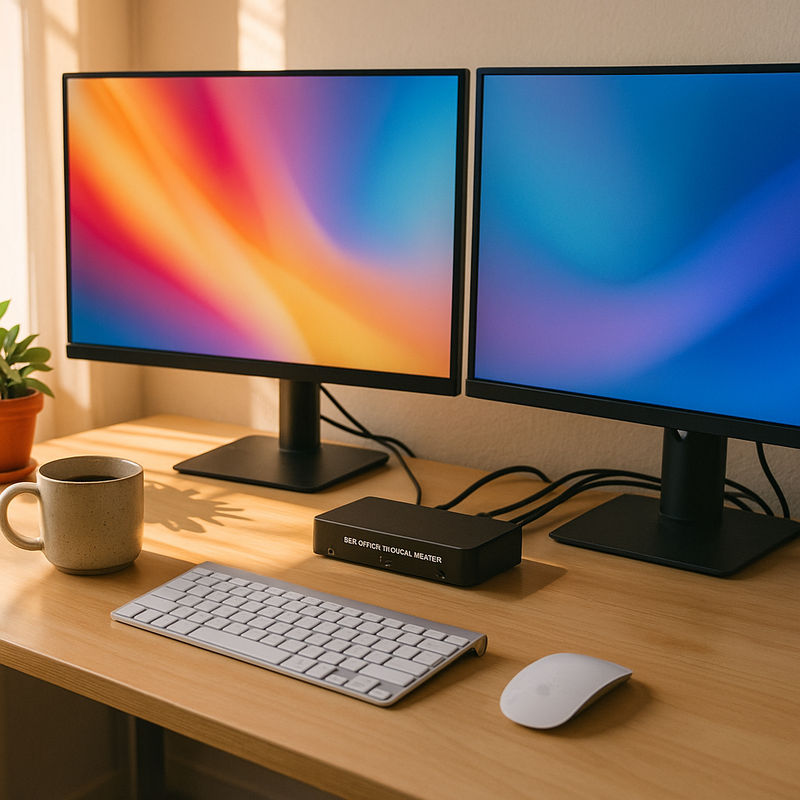
5) Cable management: choose your pain
Dual-monitor KVMs require a lot of cables. There is no moral victory here — only choosing the mess you can live with.
- Look for: Clear labeling and enough spacing between ports that you’re not trying to plug in chunky connectors like you’re defusing a bomb.
- Nice in real life: If a KVM includes cables, treat that as “a starting point,” not a blessing. The included cables are often short, stiff, or just barely adequate — perfect if your computers sit obediently side by side, less perfect if one is a laptop you move around.
- Tiny apartment truth: If your “office” is also your dining table, you’ll want a setup that can disconnect quickly without pulling half your life onto the floor.
6) Audio switching: either essential or irrelevant — but you should decide upfront
Some people don’t care at all because they use Bluetooth headphones and forget sound exists until a Slack ping scares them. Others need speakers and a microphone to follow them between machines without opening settings every time.
- Look for: Straightforward audio switching if you use wired speakers or a desktop mic and want them shared.
- Honest caveat: Audio is one of the most “it should be simple but isn’t” parts of these devices. If you’re picky about sound, you may prefer keeping audio separate rather than letting the KVM be your sound engineer.
7) Reliability and support: boring, crucial, and the reason some editors become obsessive
A KVM can be perfect for three weeks and then start doing strange little disappearances: one monitor not waking up, a USB device not reconnecting, a random need to power-cycle the unit like it’s having an existential crisis.
- Look for: A reputation for stable switching over months, not just out-of-the-box delight. Pay attention to patterns in owner reviews: “works great” is common; “still works great after a year with my exact setup” is gold.
- Nice in real life: Responsive support and clear documentation. You do not want to troubleshoot a dual-monitor chain while your second computer is screaming for an update.
- Honest caveat: Compatibility can be fussy — especially if you’re mixing operating systems, docking stations, adapters, and monitors from different eras. The KVM isn’t always the villain, but it’s usually the one you can return.
What to prioritize based on your day-to-day
- If your job is meetings: USB stability (webcam/mic), quick switching, minimal screen blackout.
- If your job is visual work: The right video standard for your monitors, consistent resolution/refresh, and a KVM that doesn’t introduce flicker or odd color behavior.
- If you game on one machine and work on the other: Don’t compromise on refresh rate and input responsiveness. Also: accept that “perfect for both” gets expensive fast.
- If your desk is also your kitchen table: A wired remote switch button and a cable plan that doesn’t require a full teardown to clear space for dinner.
Things to know before you buy (so you don’t end up angrily reordering cables at midnight)
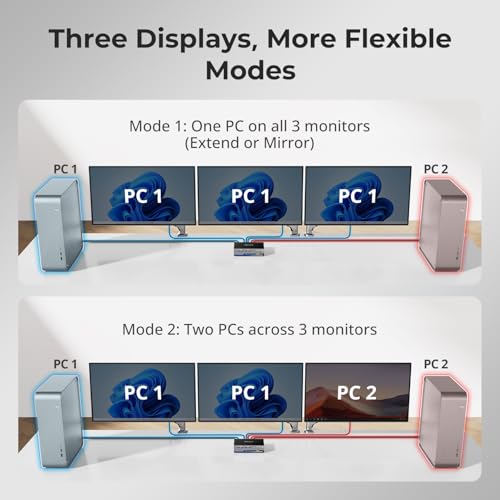
- Count your ports with your eyes, not your hopes. Two monitors means two video connections per computer. Add USB. Add audio if needed. Add power. It stacks up.
- Be realistic about adapters. Every adapter is a tiny opportunity for chaos. If your computers are USB-C-only, you may be happier using a dock in the chain — but that can add its own quirks.
- Expect a little blink. Some black-screen moment during switching is normal. The question is whether it’s a polite blink or a full dramatic fade-to-black.
The honest bottom line
The best dual-monitor KVM switch is the one you stop noticing — the one that lets you move between work and personal machines (or laptop and desktop, or two work rigs because you contain multitudes) without your desk becoming a constant negotiation.
Prioritize the switching method you’ll actually use, video support that matches your monitors as you run them, and USB behavior that doesn’t sabotage your peripherals. Then accept the mild indignity of extra cables, find a place for the little black box to live, and enjoy the oddly luxurious feeling of having one keyboard that belongs to your whole life.
1,300+ shoppers have used Buyer's Guide in the last week to help find the best KVM Switches for Dual Monitors.

Helping millions of users make smarter purchases online.